Audience: Grantors (All Roles)
Introduction
The Notification Center allows grantors to receive notifications for all new grant and application
messages in one location. Grantors receive notifications for all grants and applications they are
assigned to as primary, and email notifications are received when messages are sent. Messages
received in the notification center direct users to grant or application messages within both
GrantSolutions Grants Management Services (GMM) classic and new enhanced screens.
When grantors generate a bulk export they receive a notification and can download the CSV file in the
Notification Center.
Note: Notifications (alerts and email notifications) do not apply to MGM grant messages. The recipient
and grantor users should not receive email notifications or alerts in the notification center.
Note: Please refer to the “Bulk Messages for Grantors” Quick Sheet to learn more about bulk
messages
Login
To log into GrantSolutions and access the “Grants List” screen, follow the steps below:
- From a browser such as Google Chrome, navigate to www.grantsolutions.gov and click the
Login button.

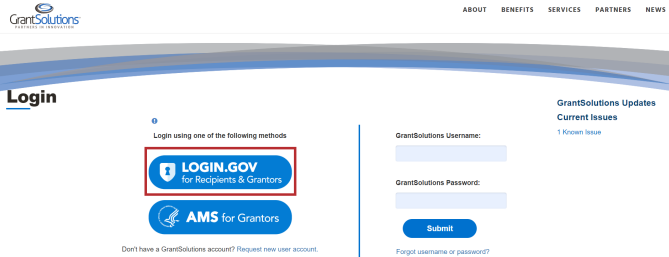
- The “GrantSolutions Login” screen appears. Click the Login.gov for Recipients & Grantors
button to log in using a Login.gov account
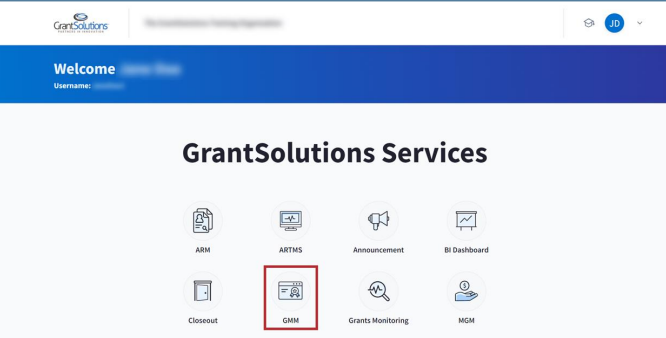
3. The “Homepage” appears. Click the GMM button.
4. The “GMM Navigation” window appears. Click the Go to GMM button.
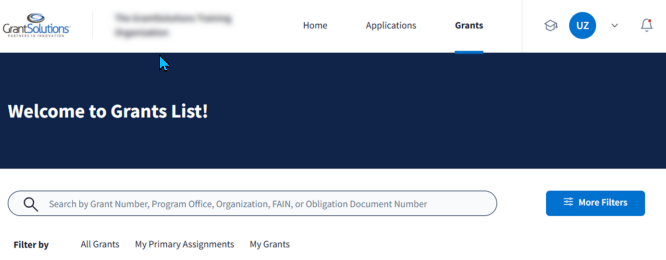
The “Grants List” screen appears.
The Notification Center
To access and perform tasks in the Notification Center, follow the steps below:
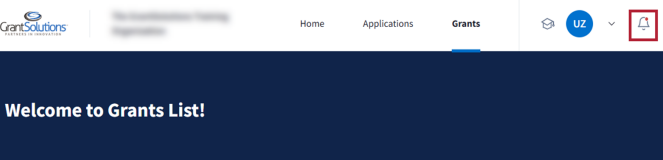
- From the “Grants List” screen, click the alerts icon in the Global Navigation bar.
Note: An alert icon with a red dot indicates new notifications
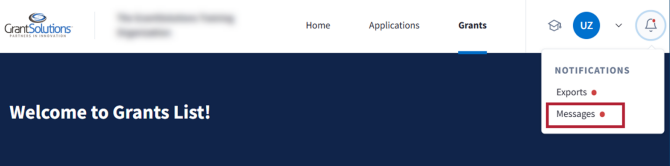
2. The Notifications drop-down expands. Click the Messages option
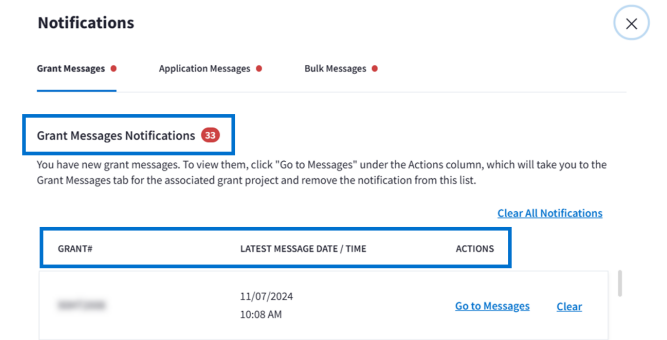
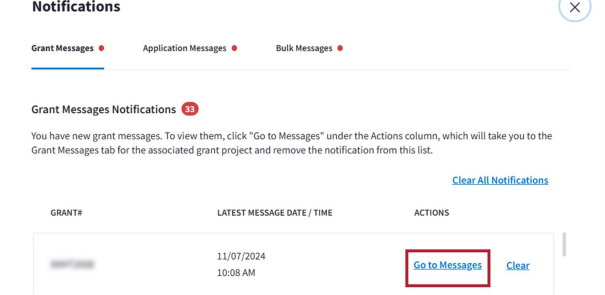
The “Notifications” screen appears with the Grant Messages tab open by default. A number to the
right of the Grant Messages Notifications title indicates the number of new messages. A results table
appears below with the following columns:
- Grant #: The Grant Number assigned to the associated grant project.
- Latest Message Date/Time: The latest date and times when the message was sent or edited.
When multiple Grant Messages with the same grant number are sent, the notification system
shows one notification with the most recent date. - Actions: Contains a Go to Messages link and a Clear link.
o Go to Messages: Click to navigate to the “Grant Messages” screen for the associated
grant project.
o Clear: Click to clear the message for the associated grant project.
Note: Click the Clear All Notifications link to erase all notifications within the Notification Center.
Clearing using this method only applies to the Notification Center, and grant messages remain on the
“Grant Messages” screen for the associated grant project.
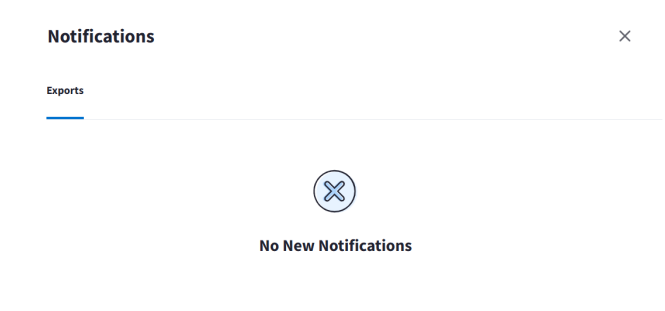
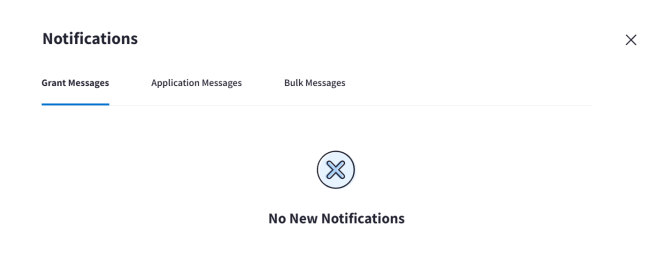
If no new notifications exist, a “No New Notifications” message appears
- Click the Go to Messages link in the Actions column to view a grant message for the associated
grant project.
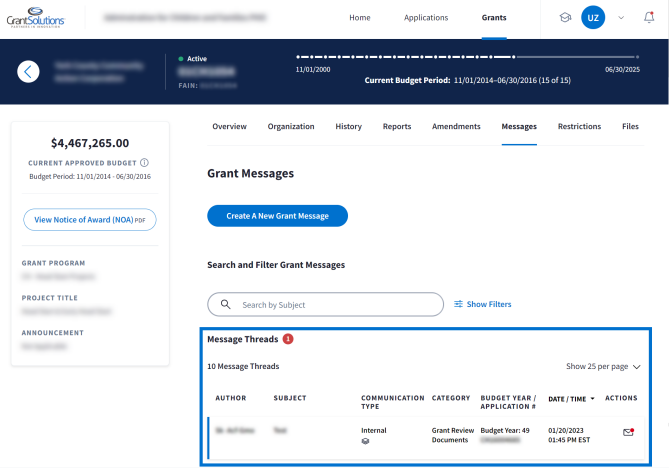
The “Grant Messages” screen appears, with a Message Threads results table below. Multiple grant
messages and replies may appear in the Message Threads results table, with the most recent grant
messages at the top. Upon selecting a grant message, it becomes read and changing it back to unread
is not possible.
Note: The search and filter features allow for modification of results. Grantors can read all messages
and respond to them within the thread.
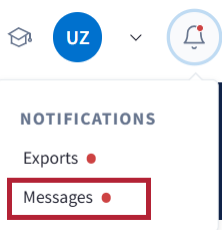
4. To return to the Notification Center, click the alerts icon in the Global Navigation bar

5. The Notifications drop-down expands. Click the Messages option.
6. The “Notifications” screen appears. Click the Application Messages tab.
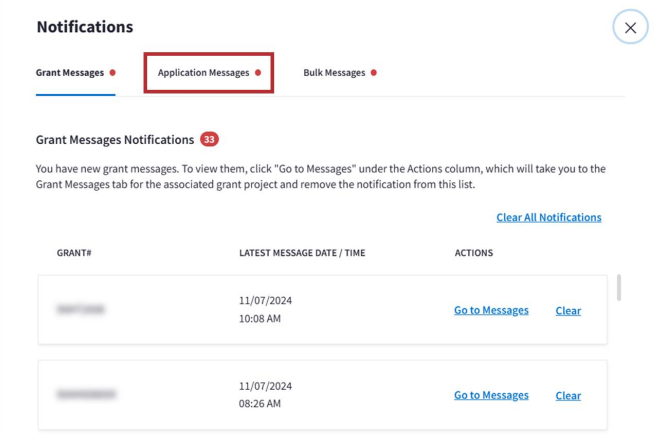
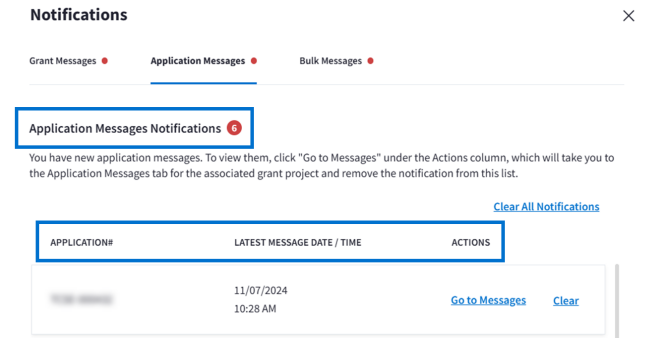
The “Notifications” screen appears with the Application Messages tab open. A number to the right of
the Application Messages Notifications title indicates the number of new messages. A results table
appears below with the following columns:
- Application #: The Application Number assigned to the associated application.
- Latest Message Date/Time: The latest date and times when the grantor sent or edited the
message. When multiple Application Messages with the same grant number are sent, the
notification system shows one notification with the most recent date. - Actions: Contains a Go to Messages link and a Clear link.
o Go to Messages: Click to navigate to the “Application Messages” screen for the
associated application.
o Clear: Click to clear the message for the associated application.
Note: Click the Clear All Notifications link to erase all notifications within the Notification Center.
Clearing using this method only applies to the Notification Center, and application messages remain on
the “Grant Messages” screen for the associated application.
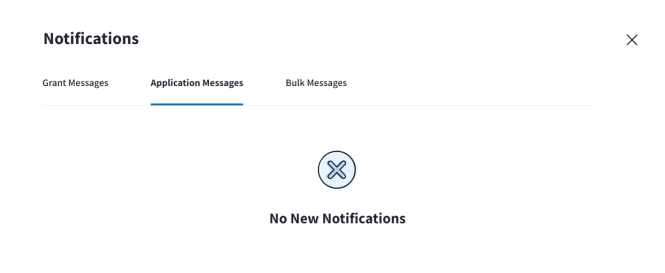
If no new notifications exist, a “No New Notifications” message appears.
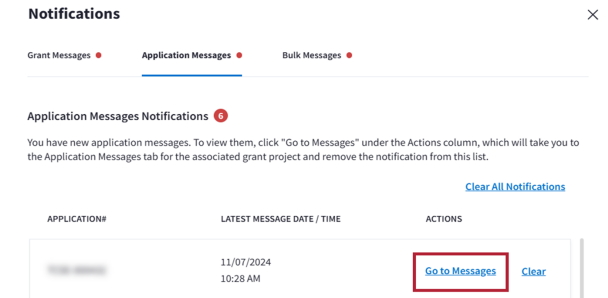
- Click the Go to Messages link in the Actions column to view an application message for the
associated application.
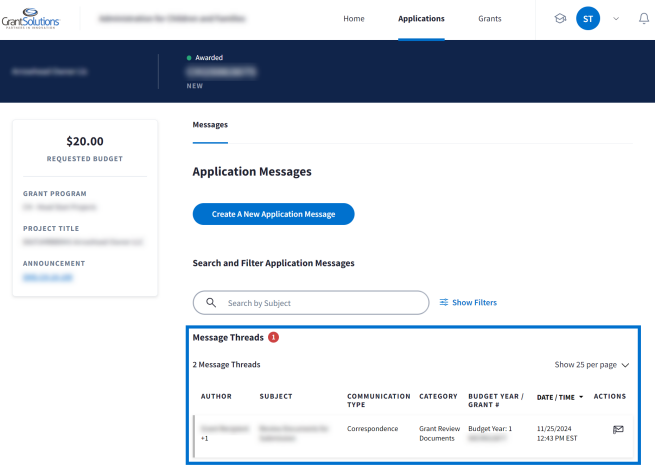
The “Application Messages” screen appears, with a Message Threads results table below. Multiple
application messages and replies may appear in the Message Threads results table, with the most
recent application messages at the top. Upon selecting an application message, it becomes read and
changing it back to unread is not possible
Note: Results can be modified using the search and filter features. Grantors can read all messages and
respond to them within the thread.
8. To return to the Notification Center, click the alerts icon in the Global Navigation bar

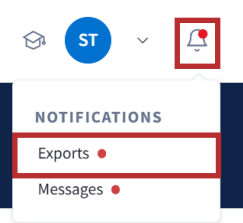
9. From the Notifications drop-down select the Exports option.
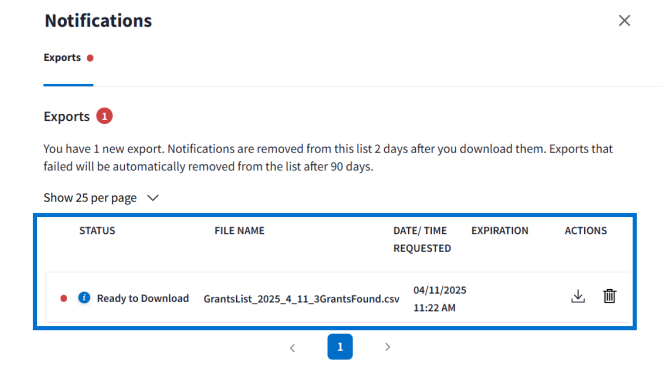
The “Notifications” screen appears with the Exports tab open. In the Exports section, a results table
appears with the following columns:
- Status: The status of the export, which may appear as Request Pending, Ready to Download, or
Downloaded. - File Name: The name of the CSV file.
- Date/Time Requested: The date and time when the bulk export was created.
- Expiration: The date the file expires and is no longer available for download.
- Actions: Contains a Download icon and a Delete icon.
o Download: Click to download the CSV file.
o Delete: Click to delete the export file.
If no new notifications exist, a “No New Notifications” message appears.