To log into GrantSolutions through Login.gov, a Grantor user must associate a GrantSolutions email address with a Login.gov account. If the user does not have a Login.gov account, create one using the email address associated with the GrantSolutions account. Perform the following steps to create a Login.gov account:
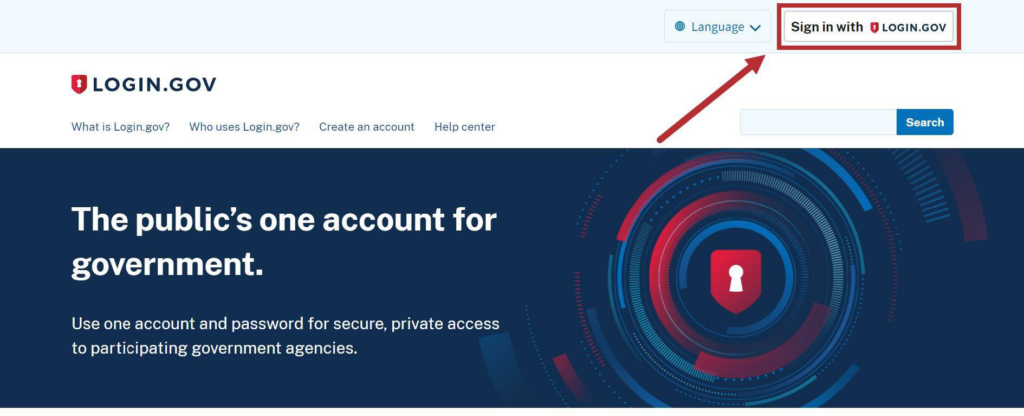
- From a browser such as Google Chrome, navigate to www.login.gov and click the Sign in with Login.gov button in the top right corner.
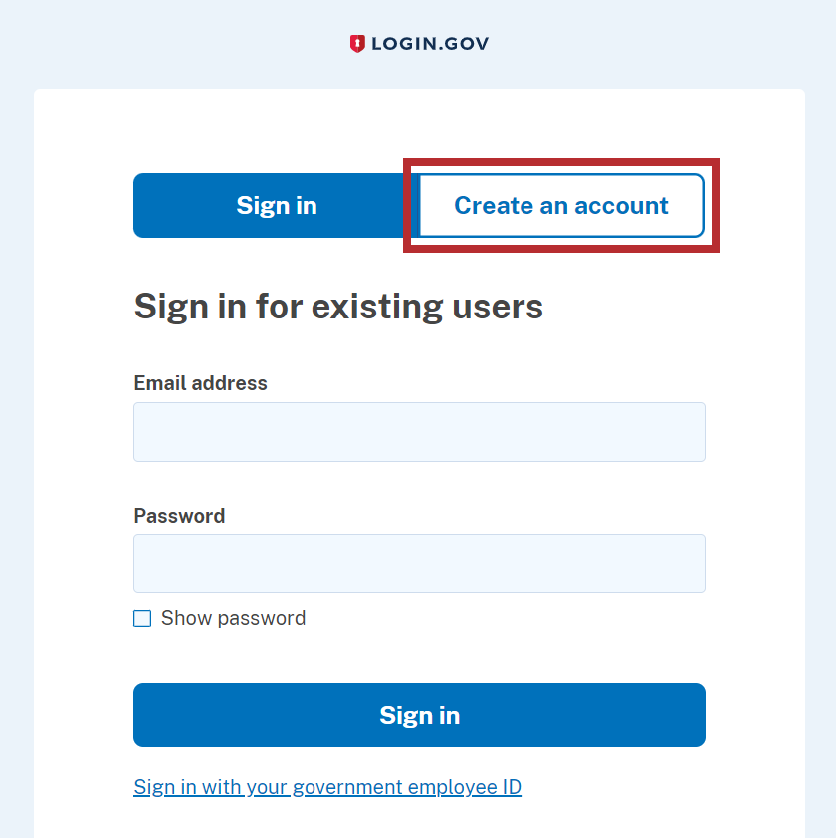
- The Login.gov “Sign in” screen appears. Click the Create an account button.
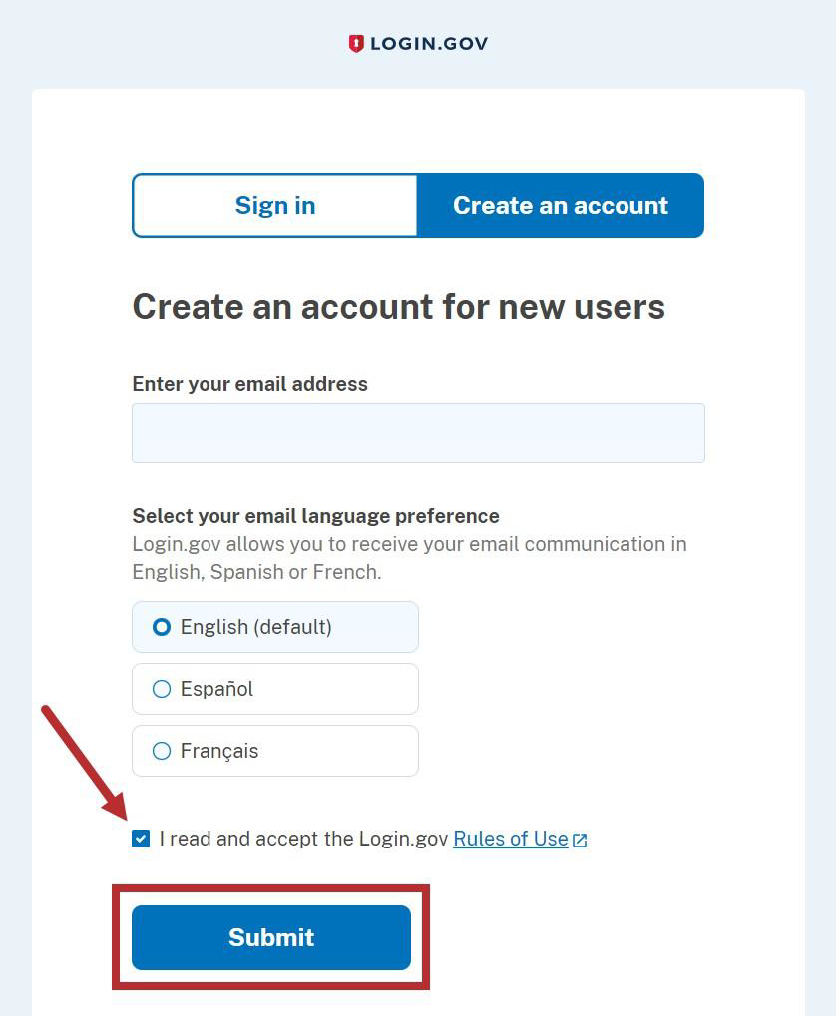
- On the Login.gov “Create an account” screen, select the Rules of Use checkbox and click the Submit button.
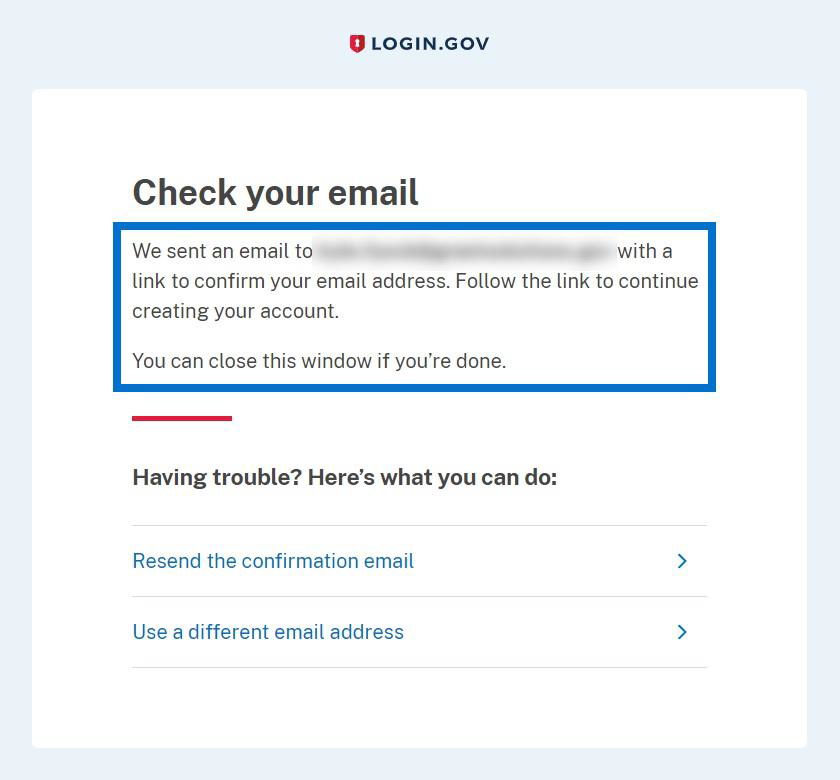
- The Login.gov “Check your email” screen appears with a message that an email is sent to the user email inbox with a link to confirm the email address.
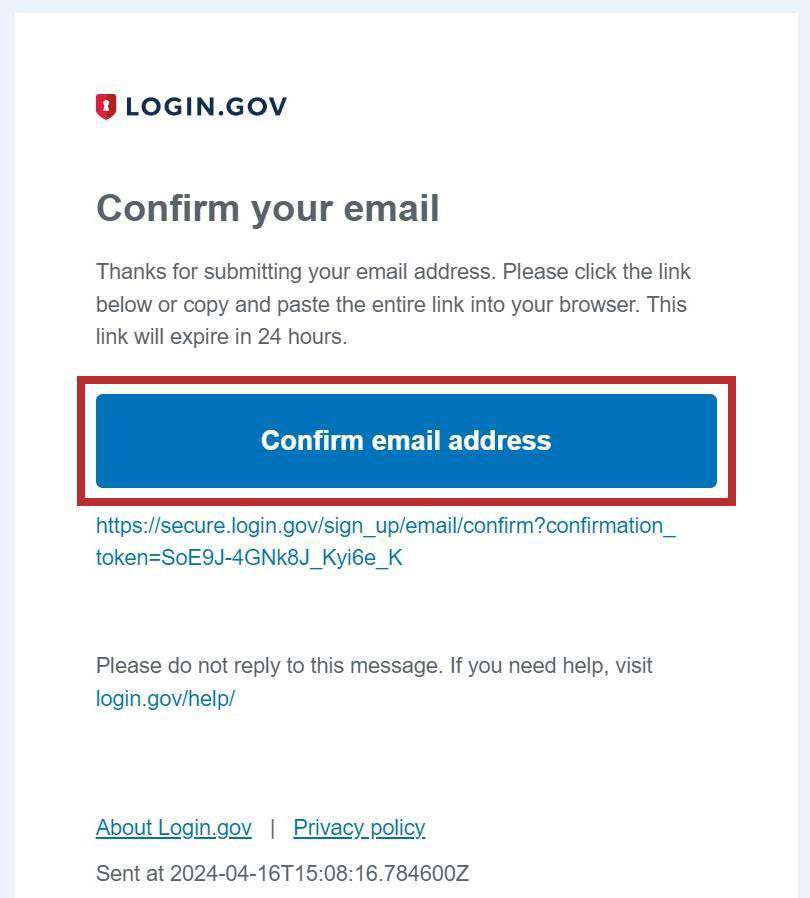
- The user receives an email from no-reply@login.gov with the subject “Confirm your email.” In the email, click the Confirm email address button or copy and paste the link below it into a browser.
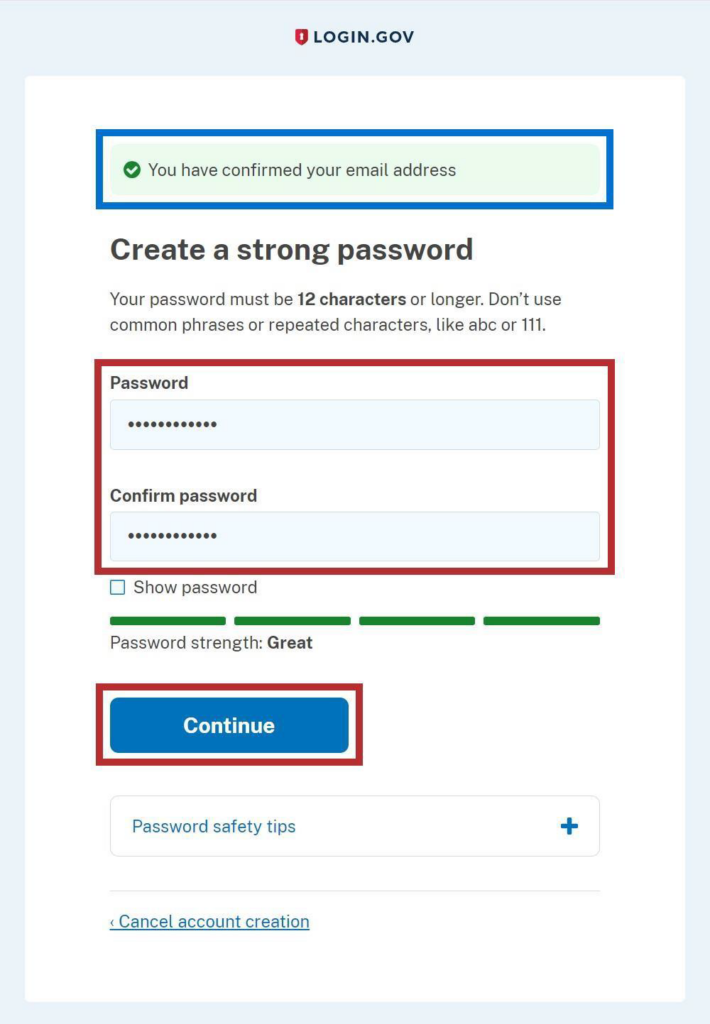
- The Login.gov interface opens and the Login.gov “Create a strong password” screen appears with the message, “You have confirmed your email address.” Enter a desired password in the Password field, enter the same password in the Confirm password field, and click the Continue button.
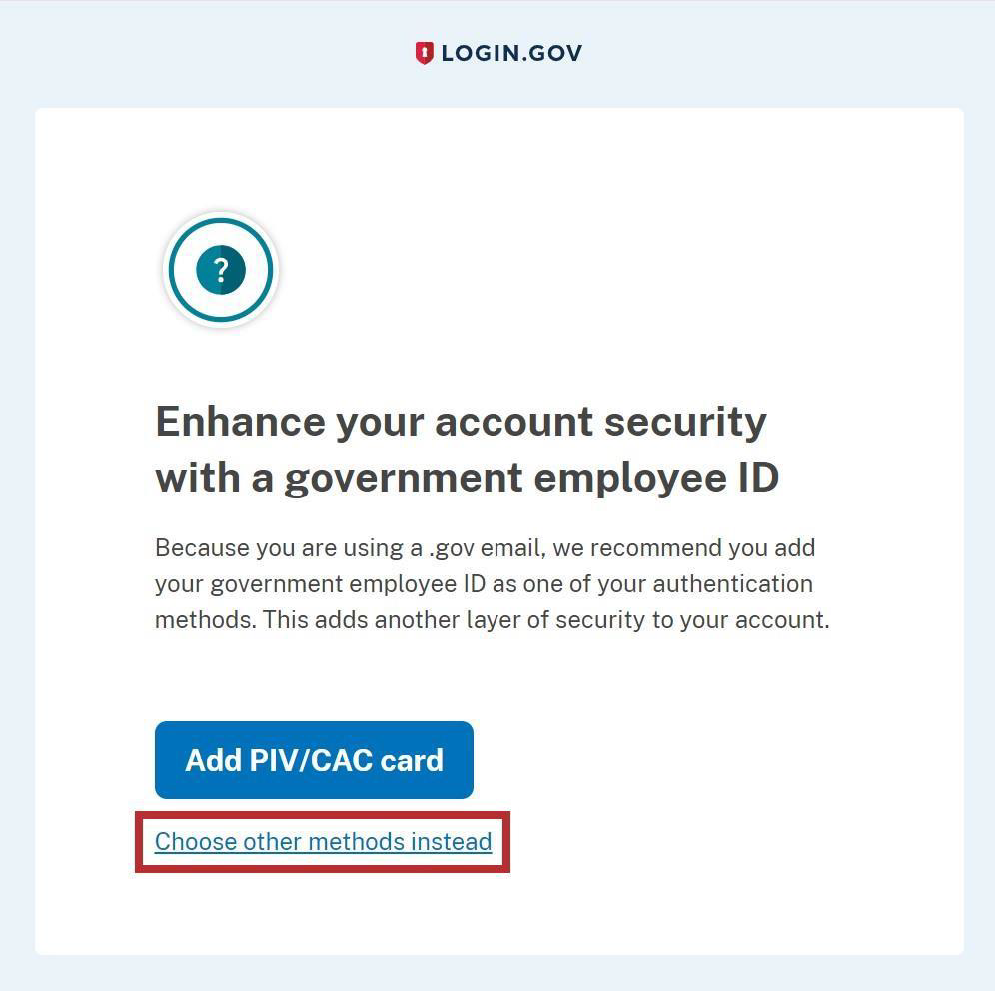
- The Login.gov “Enhance your account security with a government employee ID” screen appears. Click the Choose other methods instead link.
- The Login.gov “Authentication method setup” screen appears. Using the radio buttons, select the desired authentication method for Login.gov and click the Continue button.
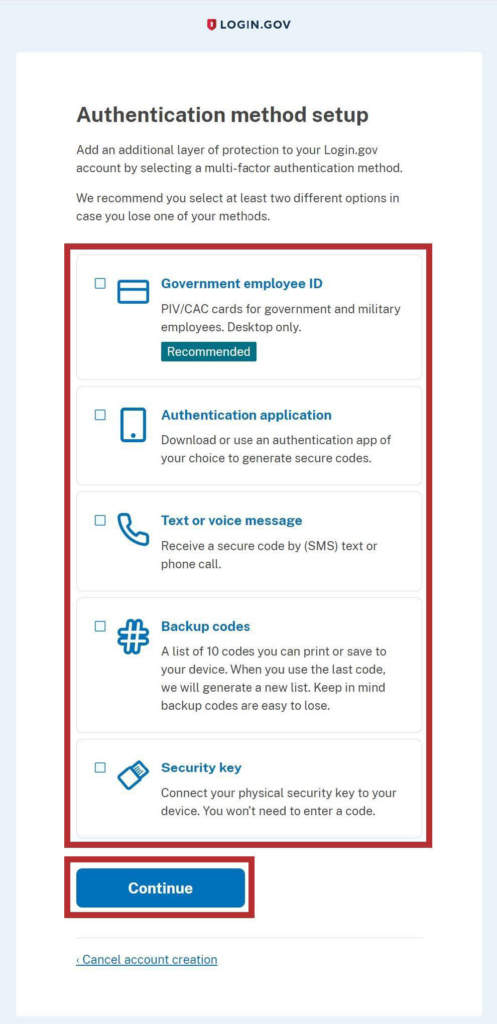
- Depending on the authentication method chosen on the Login.gov “Authentication method setup” screen, a specific authentication process screen appears. Follow instructions on each proceeding authentication screen to successfully complete authentication.
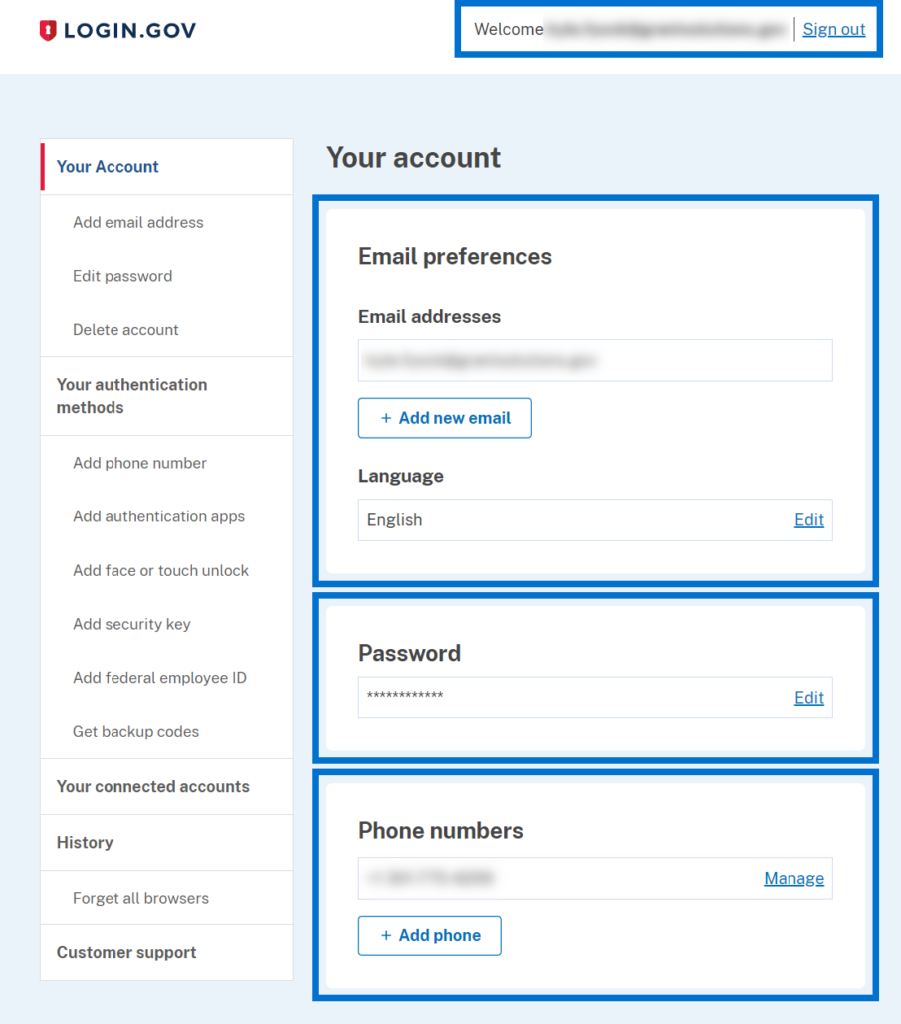
- The Login.gov account is successfully created and the Login.gov “Your account” screen appears with information specific to the user account. This screen includes the following key features:
• Welcome greeting, username, and Sign Out link in the top right corner.
• Email preferences section with Email addresses listed, preferred Language, and +Add email button.
• Password section with user password.
• Phone numbers section with phone numbers and +Add phone button.