


Audience: Grantors
Purpose
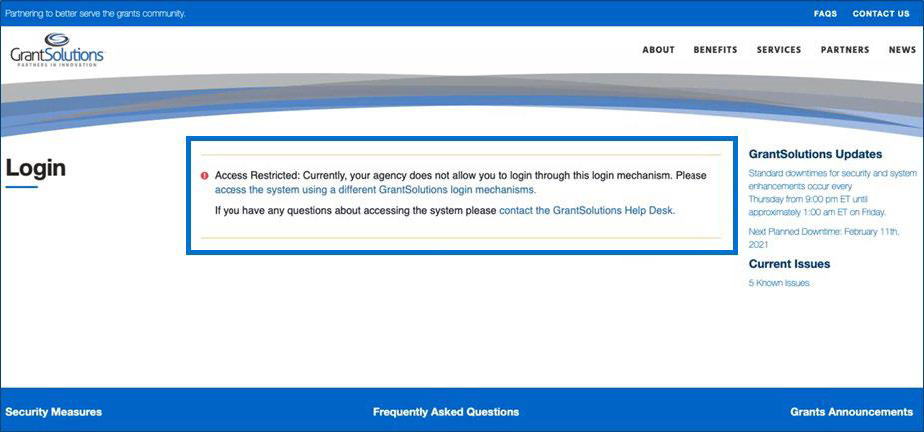
Users logging into GrantSolutions through Login.gov using a PIV or CAC ID may encounter an Access Restricted error message, preventing log in. This message may appear when the user’s Login.gov log in credentials do not match the Grantsolutions log in credentials. Login.gov is configured to store the most recent login method and credentials a user utilized when logging in. If the user has multiple email addresses, the most recent log in credentials used in Login.gov may not match the Grantsolutions log in credentials, and the Access Restricted error message may appear when attempting to log into GrantSolutions.
This Quick Sheet provides step-by-step instructions for resolving an Access Restricted error message if encountered when logging into Grantsolutions.gov using a PIV or CAC ID.
Key Points to Remember
- An Access Restricted error message may appear when attempting to log into GrantSolutions through Login.gov using a PIV or CAC ID.
- Login.gov stores the user’s most recent login method and credentials.
Resolve Access Restricted Error
To resolve the “Access Restricted” error, perform the following steps:
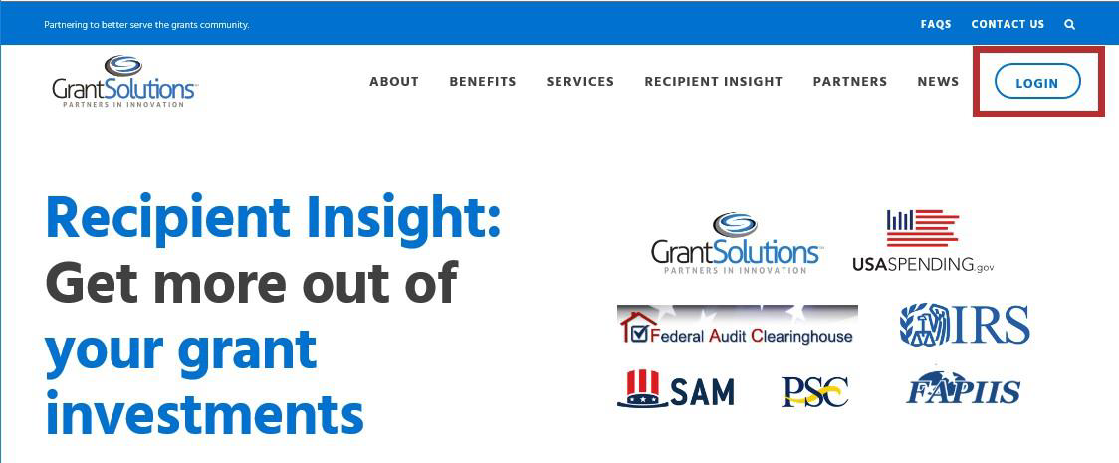
- From a browser such as Internet Explorer or Google Chrome, navigate to www.grantsolutions.gov and click the Login button.
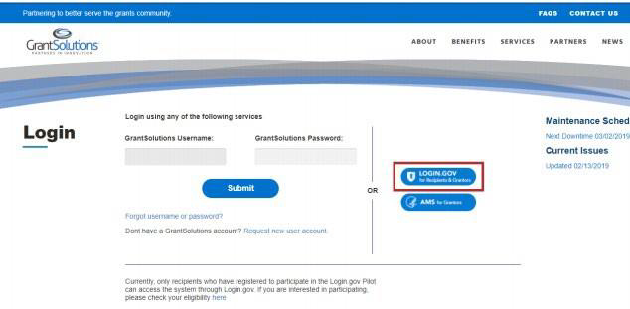
- The “GrantSolutions Login” screen appears. Click the Login.gov button to initiate the login process.
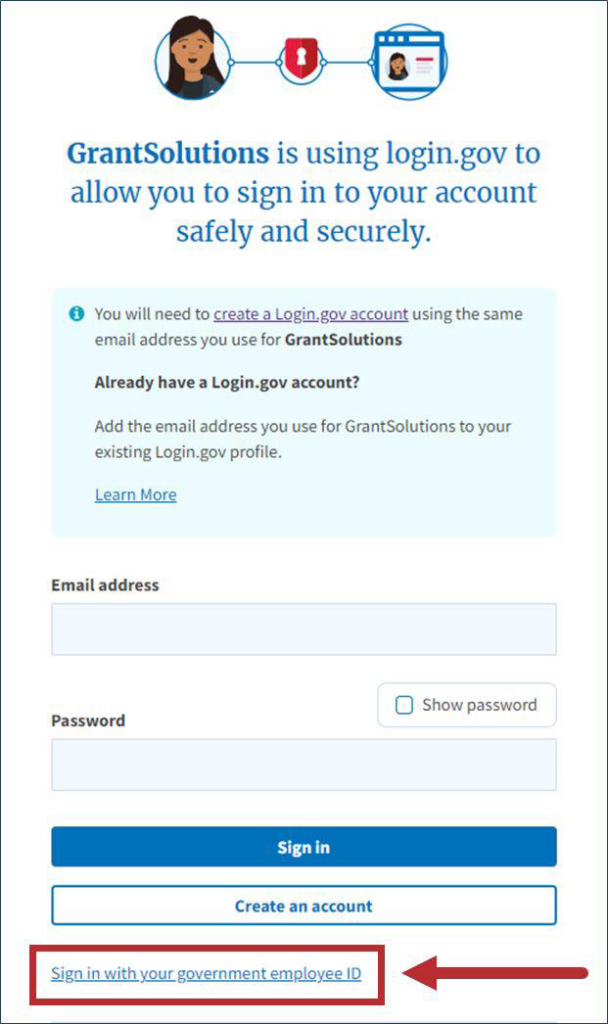
- The Login.gov “Sign in” screen appears. Existing users click the Sign in with your government employee ID link.
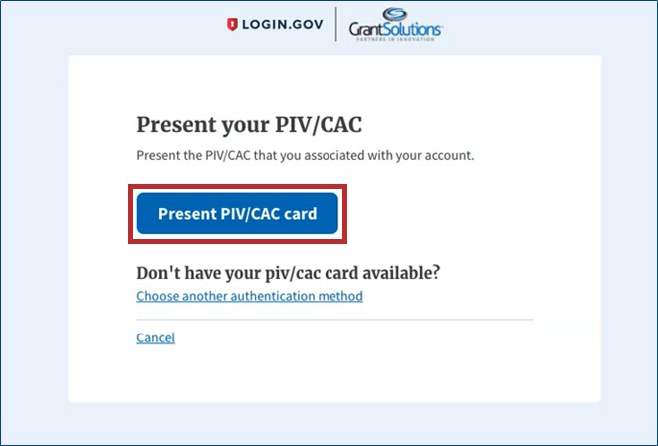
- On the Login.gov “Present your PIV/CAC” screen, click the Present PIV/CAC card button.
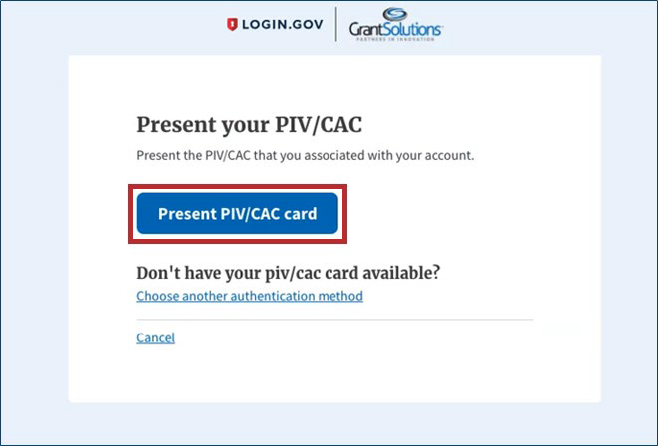
- An Access Restricted error message may appear.
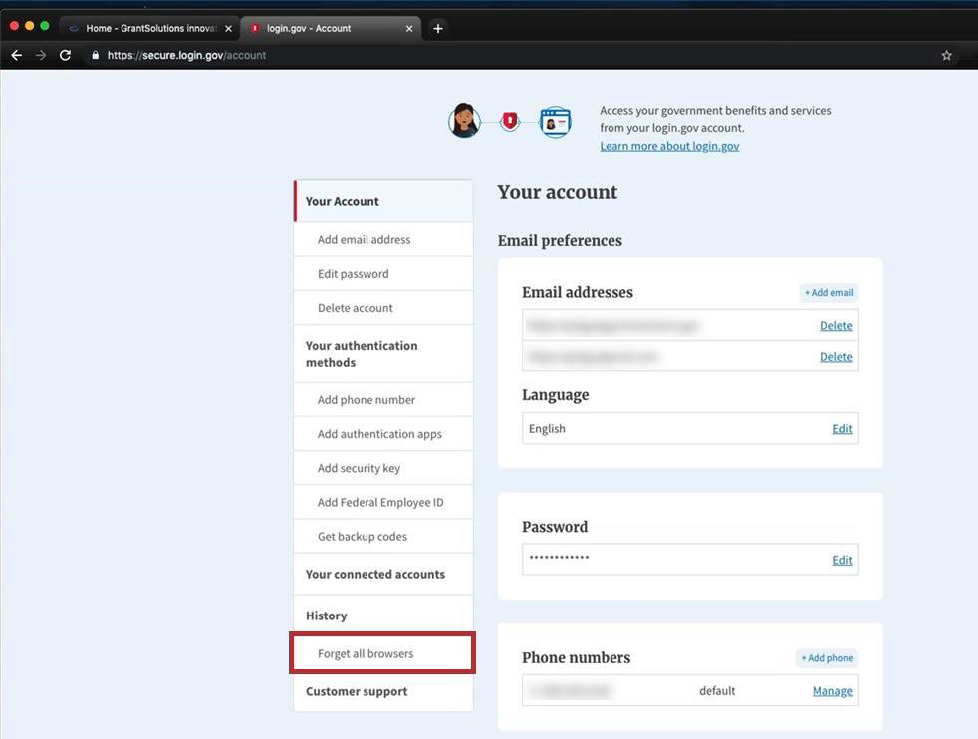
- In the browser URL, enter “Secure.login.gov/account” and press enter to navigate to your account.
- The Login.gov “Your account” screen appears. Click the Forget all browsers button in the left menu to clear the browser history.
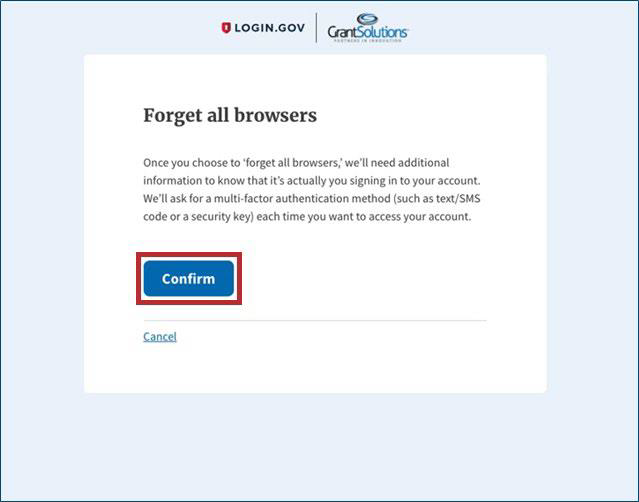
- On the Login.gov “Forget all browsers” screen, click the Confirm button.
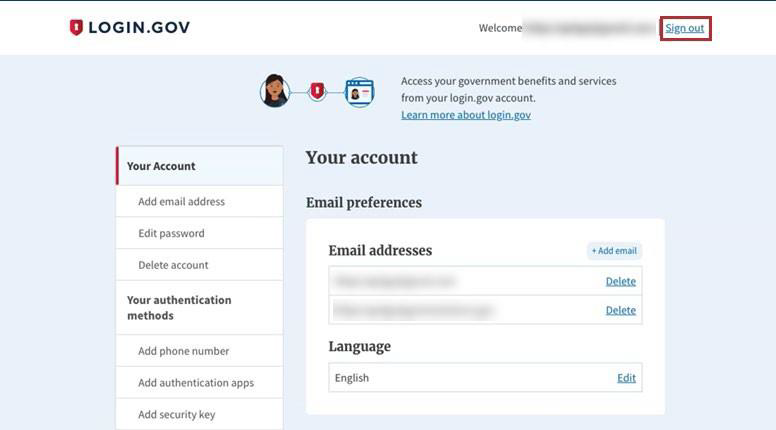
- Upon confirmation, click the Sign out link in the top right corner of the Login.gov “Your account” screen to sign out of Login.gov.
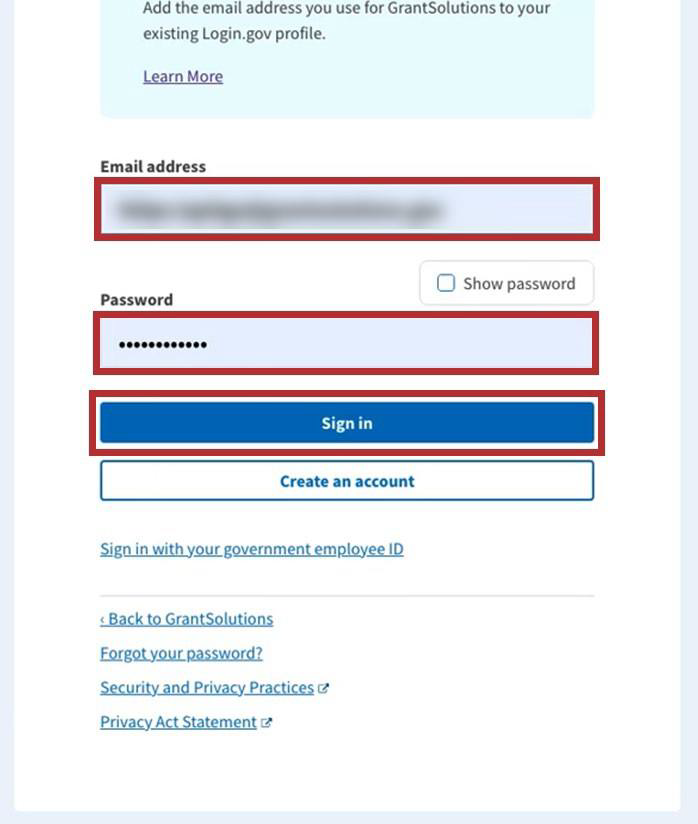
- On the Login.gov “Sign in” screen, log back into Login.gov using the email address associated with the PIV ID in the Email address field and enter the Login.gov password in the Password field. Click the Sign in button.
Note: For this step, users must use an email address and password credentials to log in.
- On the Login.gov “Present your PIV/CAC” screen, click the Present PIV/CAC card button to verify the PIN for access to Grantsolutions.gov
- Verify the PIN and access GrantSolutions.
Note: Upon successful log in, users can click the Sign in with your government employee ID link on the Login.gov “Sign in” screen to log in moving forward.