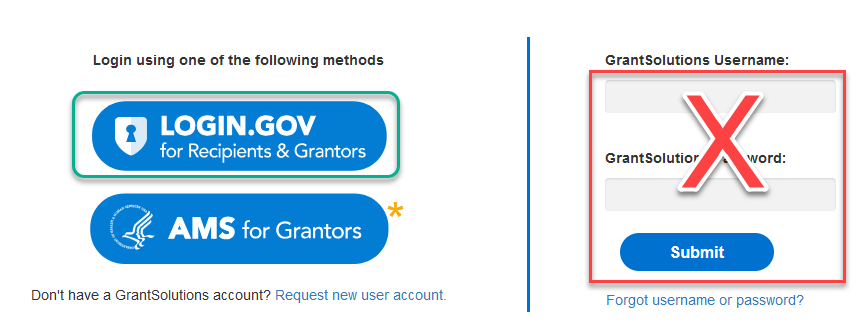
As of January 17, 2025, all users who are currently logging into ARM via the username and password method, are required to use the federally approved Login.gov method for account authentication.
*If you are currently using PIV authentication via the AMS for Grantors button, there are no changes to your process.
A Quick Explanation
All ARM users must start at the GrantSolutions.gov login page (https://venus.grantsolutions.gov) to login. You will click on the LOGIN.GOV button on the left-hand side of the screen. Following that, you will automatically be redirected to Login.gov to authenticate your account. After a successful authentication at Login.gov, you are re-directed back to your ARM portal page in GrantSolutions.
Do you have a Login.gov Account?
Please choose the option that best describes your situation and follow the steps provided to complete the login/authentication process:
Yes, and it’s registered with the same email address I am using for ARM.
Yes, but my Login.gov account uses a different email address.
Yes, I have a Login.gov account with the same email address I am using for ARM.
- Go to https://venus.grantsolutions.gov/
- Click on the Login.gov button.
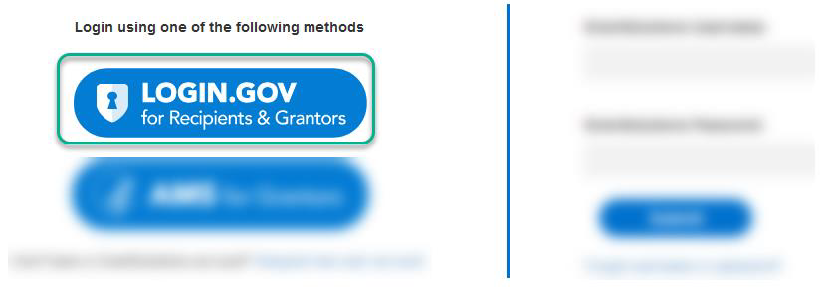
- You are automatically re-directed to the Login.gov/GrantSolutions login page.
- Check to ensure that you are at the Login.gov/GrantSolutions shared page by confirming the information highlighted in yellow in the image below.
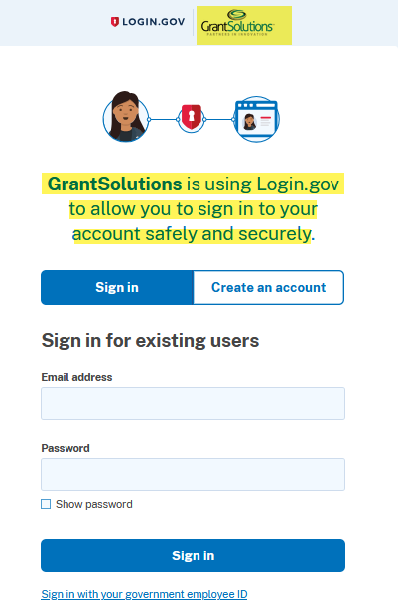
- Login to your account.
Reminder, this Login.gov account must be associated with the same email address used for ARM.
- After a successful login and authentication, you will automatically return to your GrantSolutions portal page.
- Click on the ARM icon to access your ARM account.
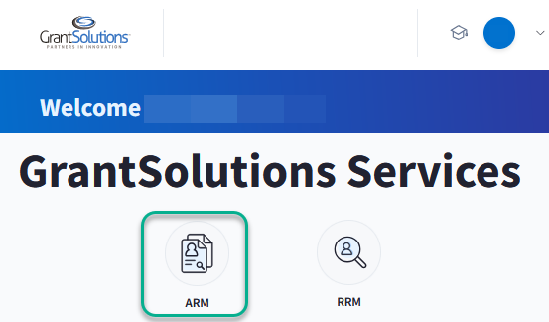
If you need assistance with your Login.gov account: Go to the Login.gov Help page or the Login.gov Contact Us page. You can also call them directly 844.875.6446.
If you receive an error once you return to GrantSolutions, please check the troubleshooting steps below or contact our helpdesk at help@grantsolutions.gov or 866.577.0771.
Yes, but my Login.gov account uses a different email address.
Login.gov provides the option to create a new and separate account, or to manage multiple email addresses under a single Login.gov account.
If you’d like to use two separate accounts, you will need to create a new account at Login.gov with the email address you are using for ARM. See the instructions below to Create a New Account.
Otherwise, you may update your current Login.gov account to add the new email address
- Go to http://login.gov
- Login to your account using your preferred email address/username.
- Update your account by clicking to add a new email using the highlighted function below.
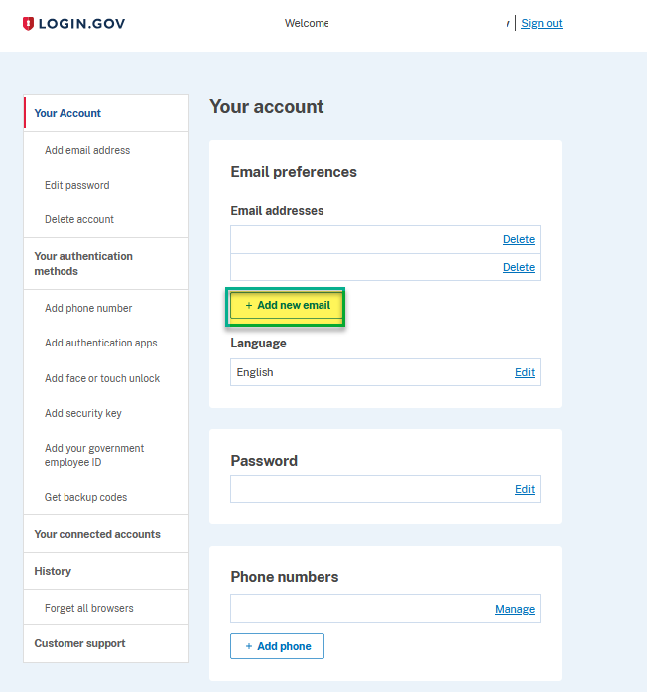
- Follow the required steps to authenticate the changes to your account.
If you need assistance, you must use the Login.gov Help page or the Login.gov Contact Us page or call them directly (844) 875-6446.
- Sign out and close all browser windows.
- Go to https://venus.grantsolutions.gov/
- Click on the Login.gov button.
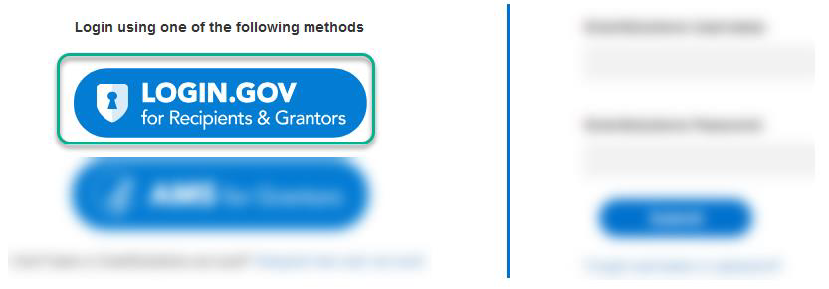
- You are automatically re-directed to the Login.gov/GrantSolutions login page.
- Check to ensure that you are at the Login.gov/GrantSolutions shared page by confirming the information highlighted in yellow in the image below.
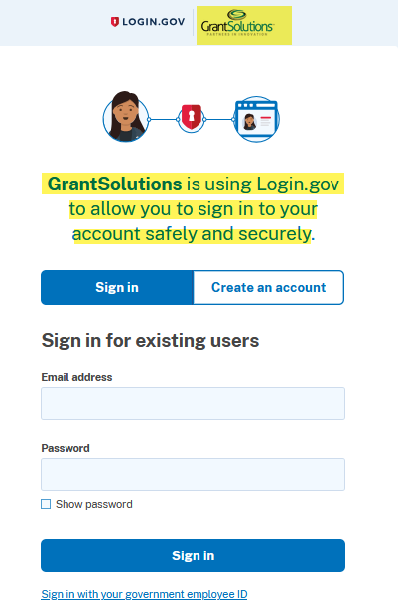
- Login to your account.
Reminder, this Login.gov account must be associated with the same email address used in ARM.
- After a successful login and authentication, you will automatically return to your GrantSolutions portal page.
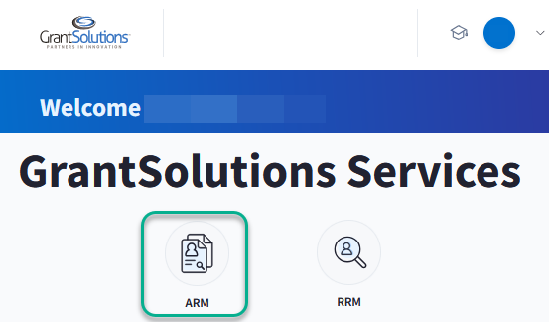
- Click on the ARM icon to access your ARM account.
If you need assistance with your Login.gov account: Go to the Login.gov Help page or the Login.gov Contact Us page. You can also call them directly 844.875.6446.
If you receive an error once you return to GrantSolutions, please check the troubleshooting steps below or contact our helpdesk at help@grantsolutions.gov or 866.577.0771.
No, I’m new to Login.gov.
- Go to https://venus.grantsolutions.gov
- Click on the Login.gov button.
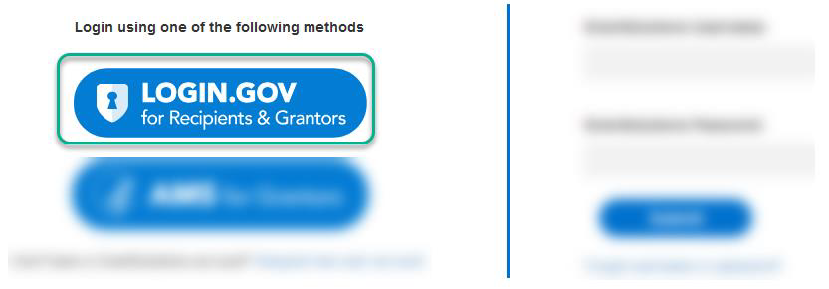
- You are automatically re-directed to the Login.gov/GrantSolutions login page.
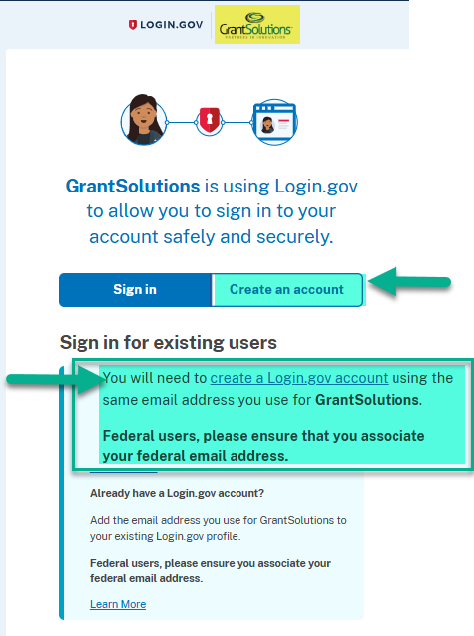
- Check to ensure that you are at the Login.gov/GrantSolutions shared page by confirming the information highlighted in yellow in the image below.
- Click on either of the two options highlighted in green below to create your account.
- Follow the required steps on Login.gov to create and verify your new account.
If you need assistance, you must use the Login.gov Help page or the Login.gov Contact Us page or call them directly 844.875.6446.
- After a successful login and authentication, you will automatically return to your GrantSolutions portal page.
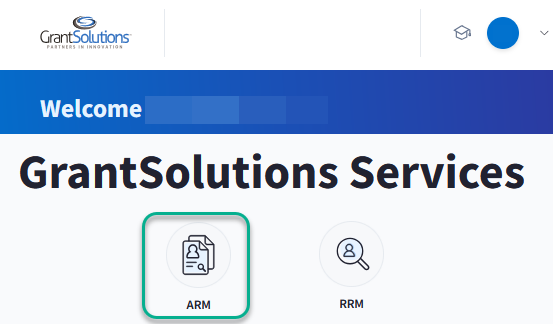
- Click on the ARM icon to access your ARM account.
If you receive an error once you return to GrantSolutions, please check the troubleshooting steps below or contact our helpdesk at help@grantsolutions.gov or 866.577.0771.
Additional Resources and Quick Troubleshooting
Login.gov: Go to the Login.gov Help; Login.gov Contact Us; or via phone: 844.875.6446.
GrantSolutions Help Desk: help@grantsolutions.gov or 866.577.0771. or 866.577.0771.
Troubleshooting
If you have a Login.gov account and/or have created a new Login.gov account but are still getting an error message, please check the following two items.
- The most common reason you are not able to gain access is that the email address associated with your ARM account is not the same email address you have registered with Login.gov. Your Login.gov account must include the exact same email address as your ARM account.
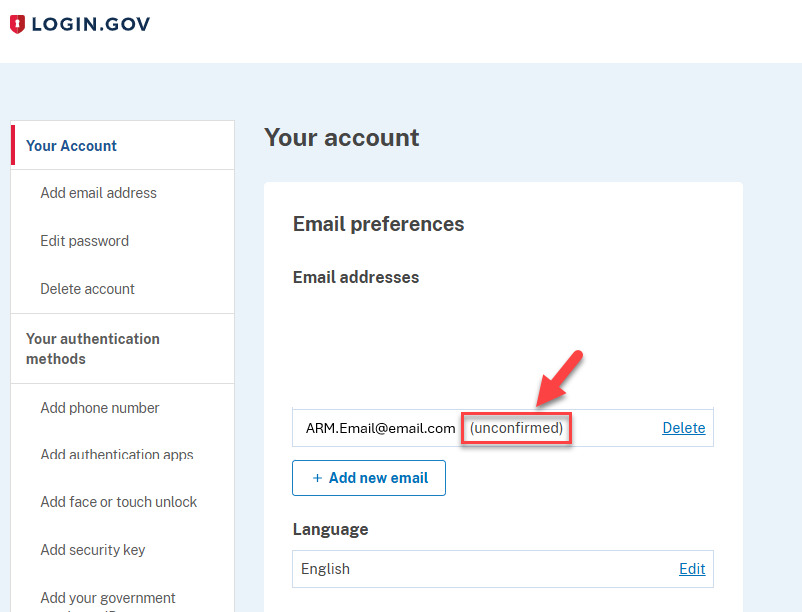
- You have not yet confirmed your email address with Login.gov. Once you create your Login.gov account or add your email to an existing Login.gov account, you must also confirm that email through a verification link that Login.gov sends to that email.
If the status of your email reads “unconfirmed” your account set up is not complete and you will not be able to access ARM.