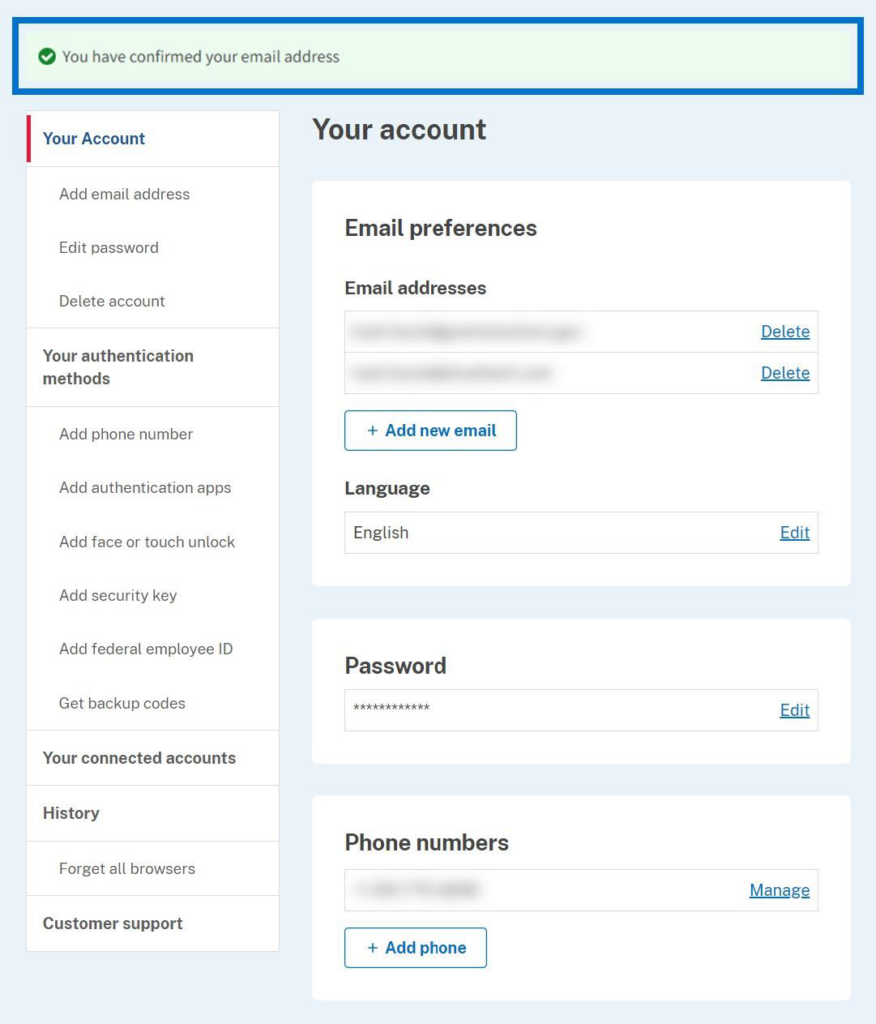
A Grantor user with an existing Login.gov account can add an email address associated with a GrantSolutions account to the Login.gov account to access GrantSolutions. If a Grantor user has an existing Login.gov account, perform the following steps to add the email address associated with the GrantSolutions account to the Login.gov account:
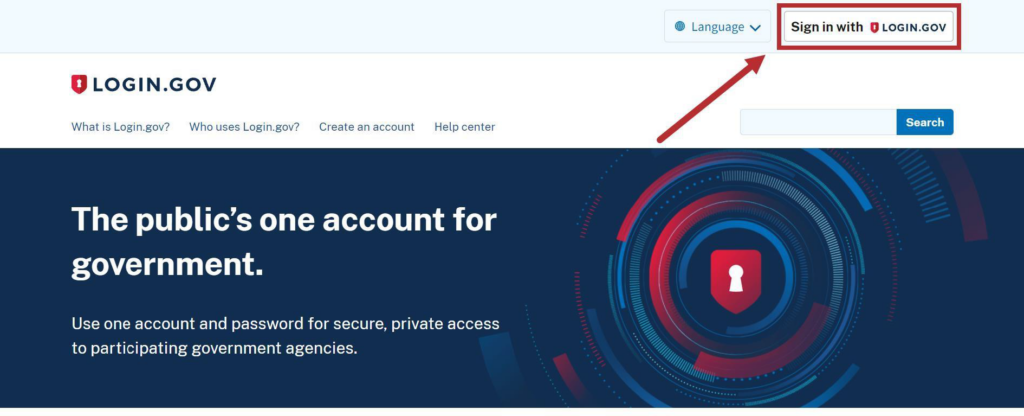
- From a browser such as Google Chrome, navigate to www.login.gov and click the Sign in with Login.gov button in the top right corner.
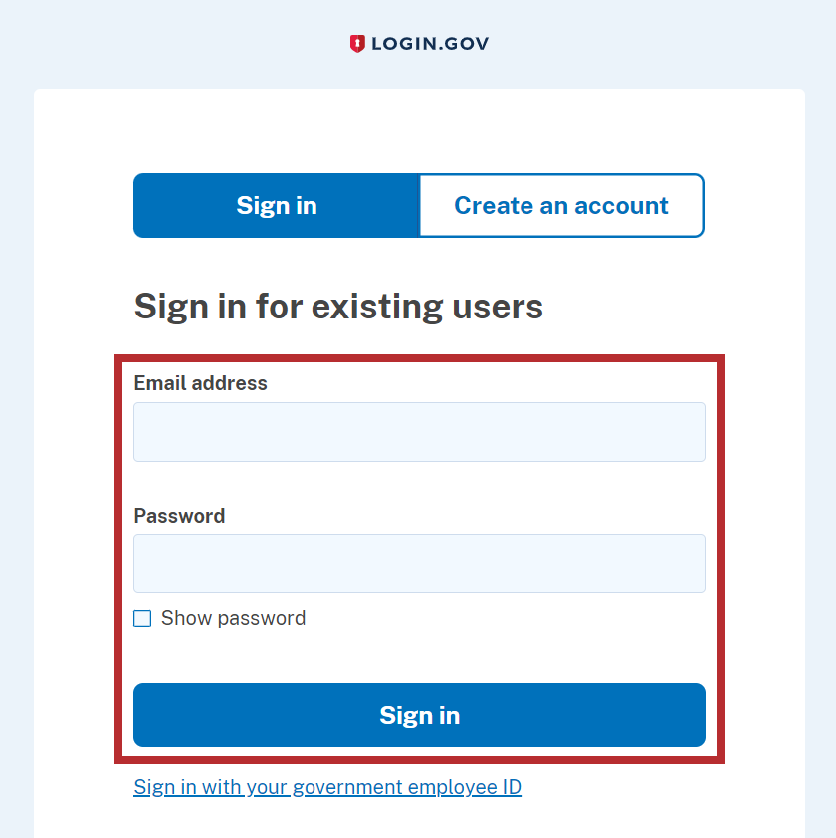
- The Login.gov “Sign in” screen appears. Enter the existing Login.gov Email address and Password and click the Sign in button to log into Login.gov.
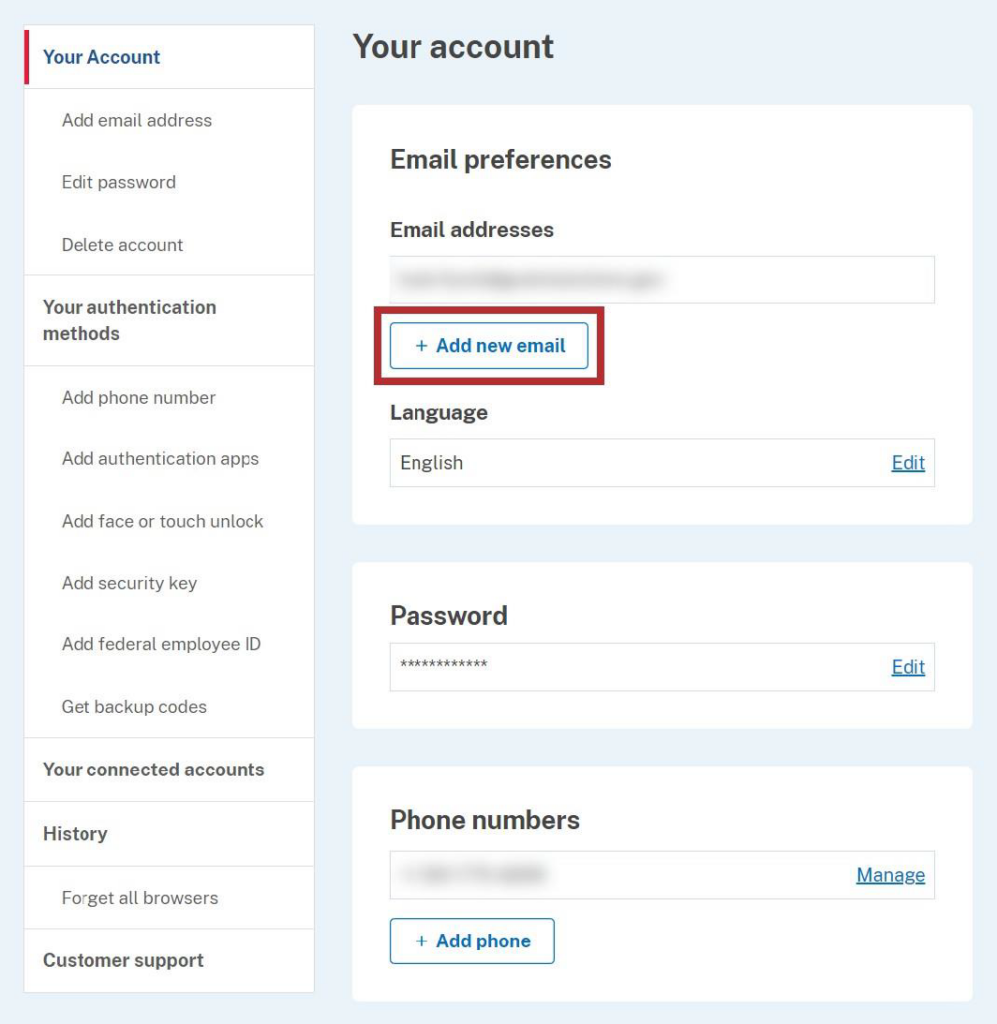
- The Login.gov “Your account” screen appears. Email addresses currently associated with the Login.gov account appear in the Email addresses list of the Email preferences section.
To add the email address associated with the GrantSolutions account to the Login.gov account, click the +Add new email button in the Email preferences section.
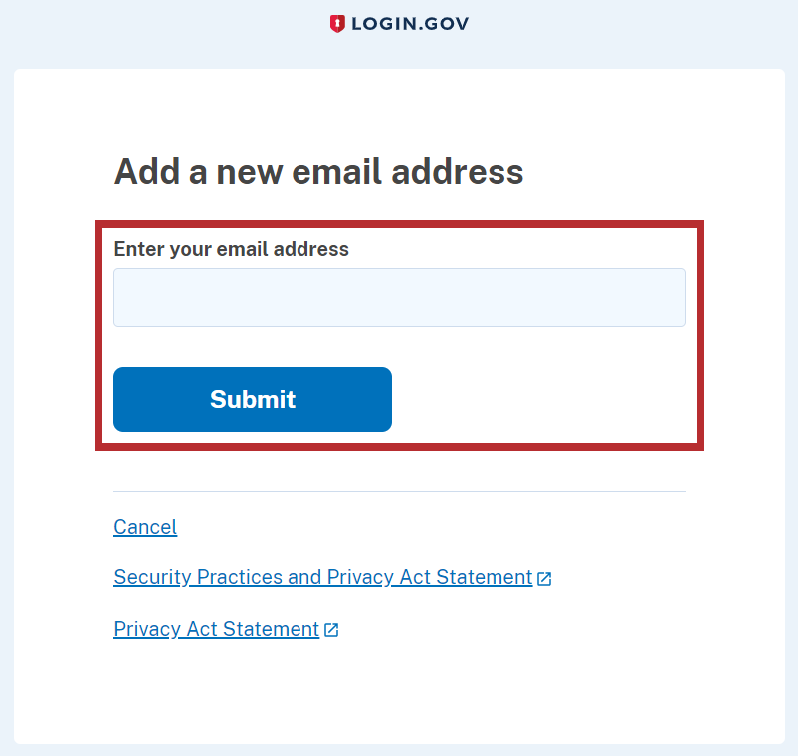
- The Login.gov “Add a new email address” screen appears. Enter the email address associated with the GrantSolutions account in the Enter your email address field and click the Submit button.
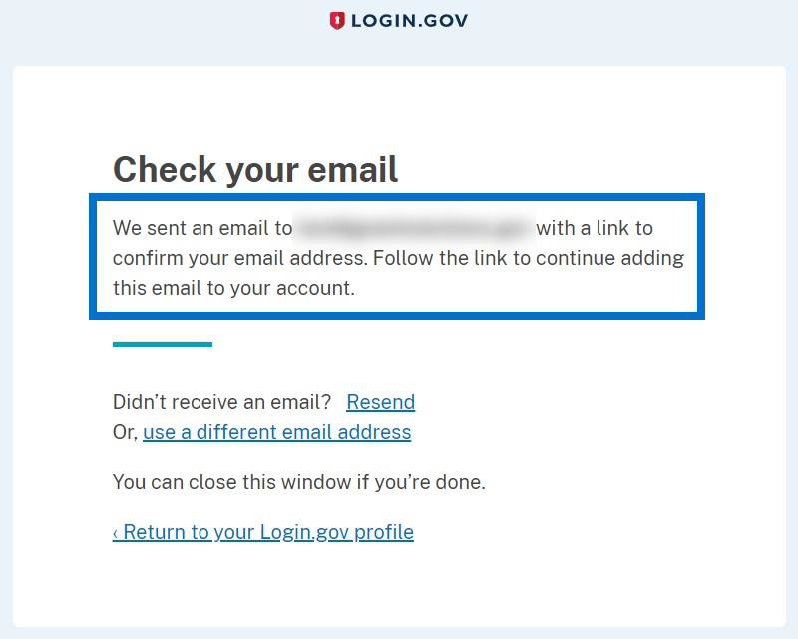
- The Login.gov “Check your email” screen appears with a message that an email is sent to the user email inbox with a link to confirm the email address.
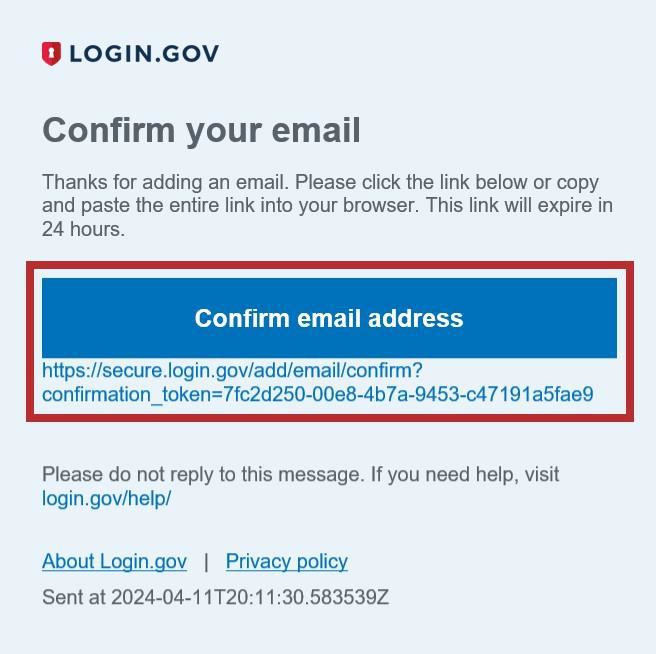
- The user receives an email from no-reply@login.gov with the subject “Confirm your email.” In the email, click the Confirm email address button or copy and paste the link below it into a browser.
- The Login.gov “Your Account” screen reappears with the message, “You have confirmed your email address.” The GrantSolutions email address is successfully added to the Login.gov account and appears in Email addresses list of the Email preferences section.