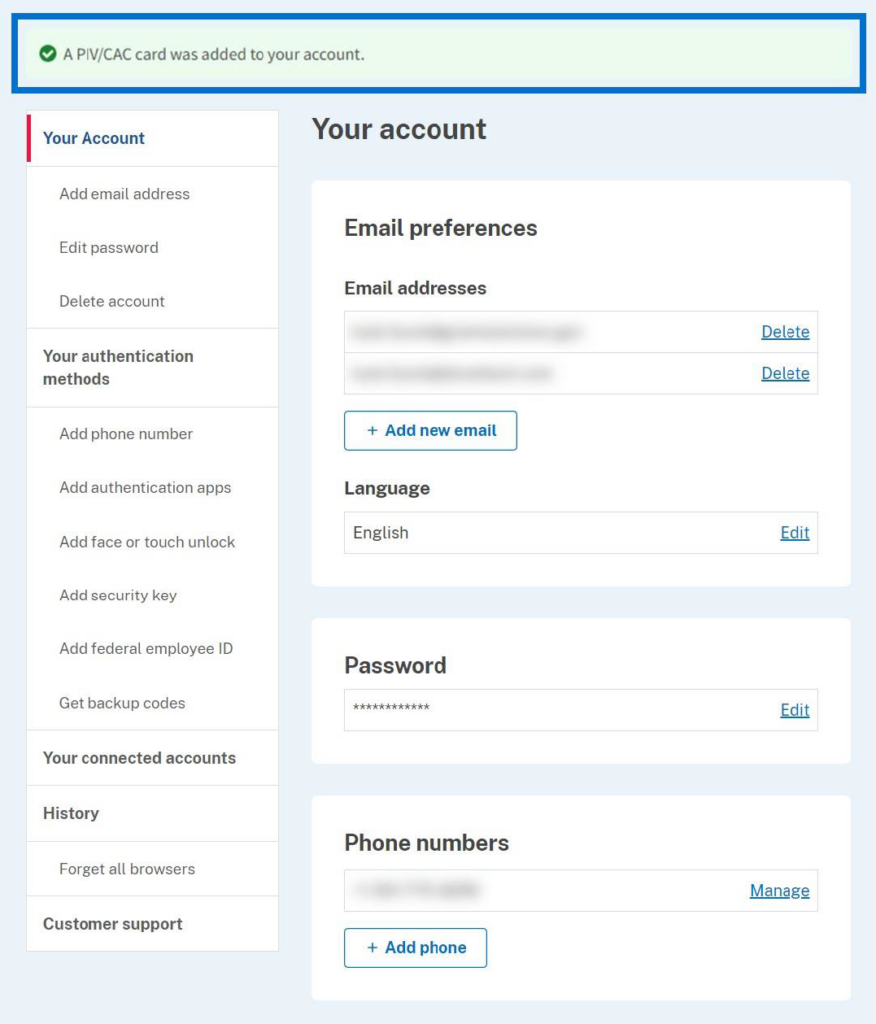
A Grantor user can add a Personal Identity Verification (PIV) card to a Login.gov account to log into GrantSolutions. A Grantor user must log into GrantSolutions through Login.gov using a PIV card.
If the user has an existing Login.gov account, perform the following steps to add a PIV card to the Login.gov account:
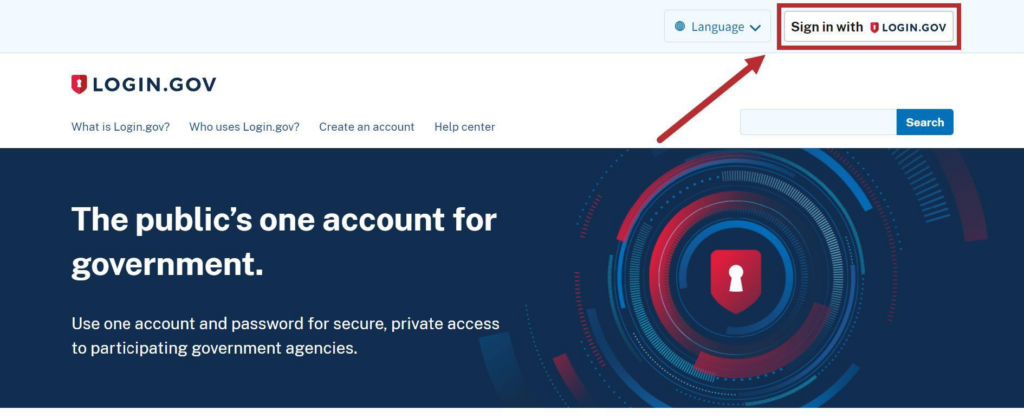
- From a browser such as Google Chrome, navigate to www.login.gov and click the Sign in with Login.gov button in the top right corner.
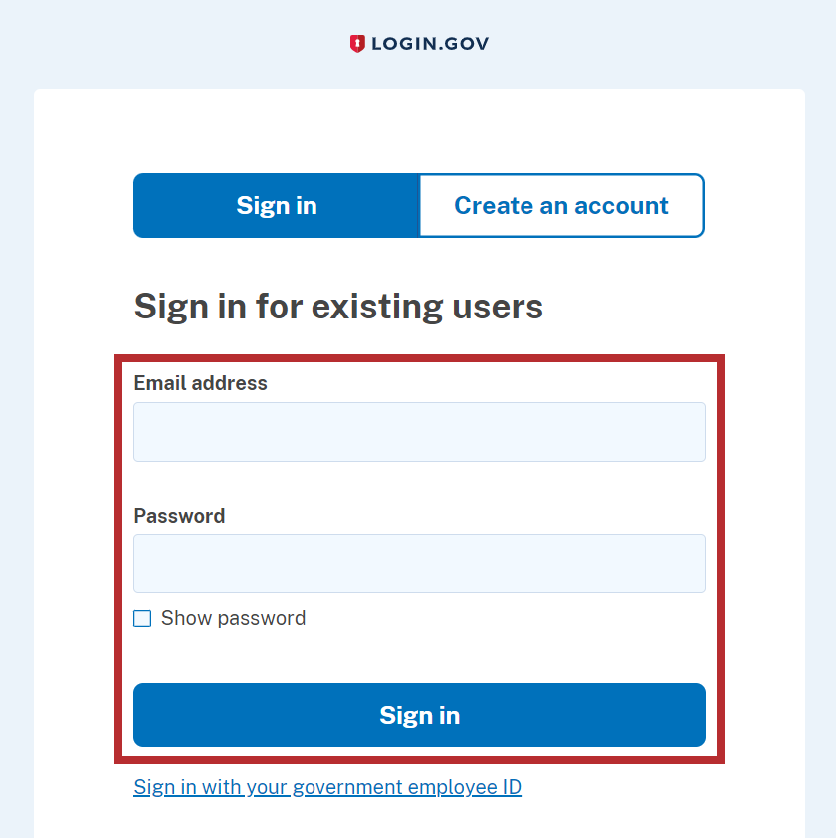
- The Login.gov “Sign in” screen appears. Enter the existing Login.gov Email address and Password and click the Sign in button to log into Login.gov.
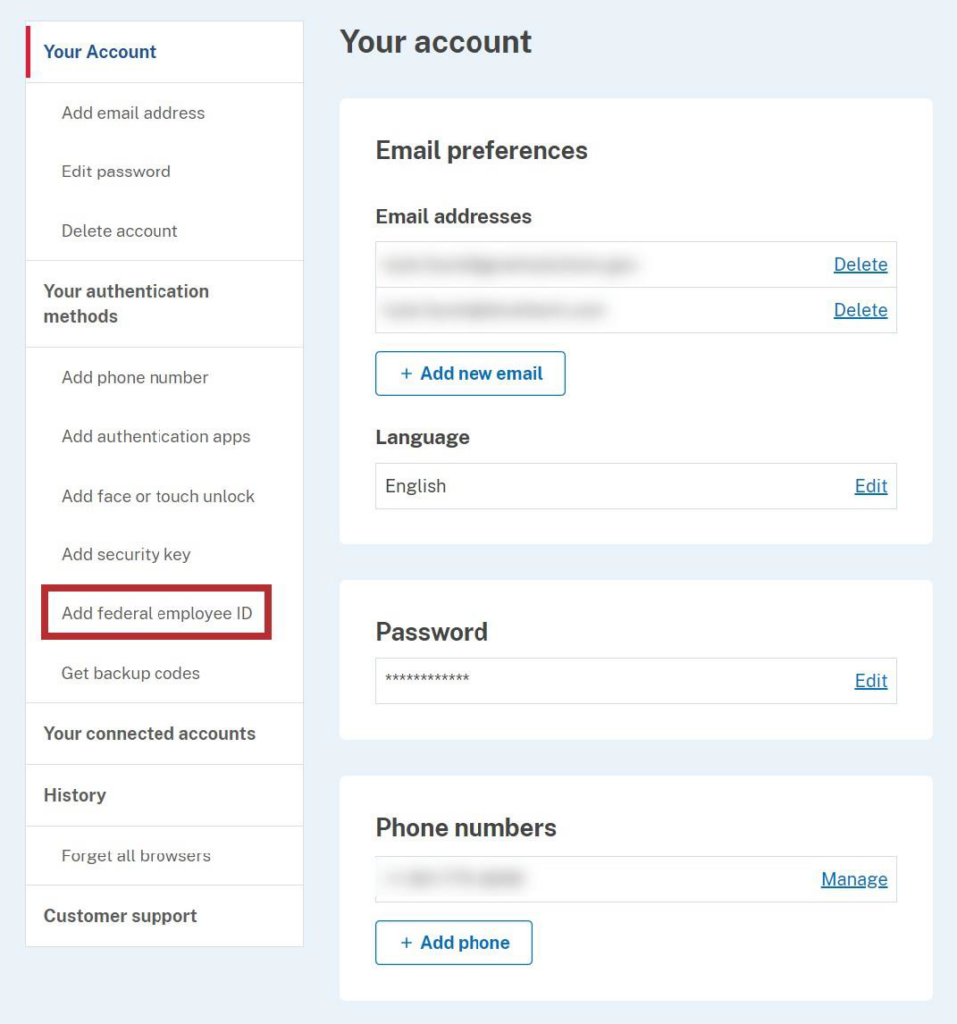
- The Login.gov “Your account” screen appears. Click the Add federal employee ID button in the Your authentication methods section of the left menu bar.
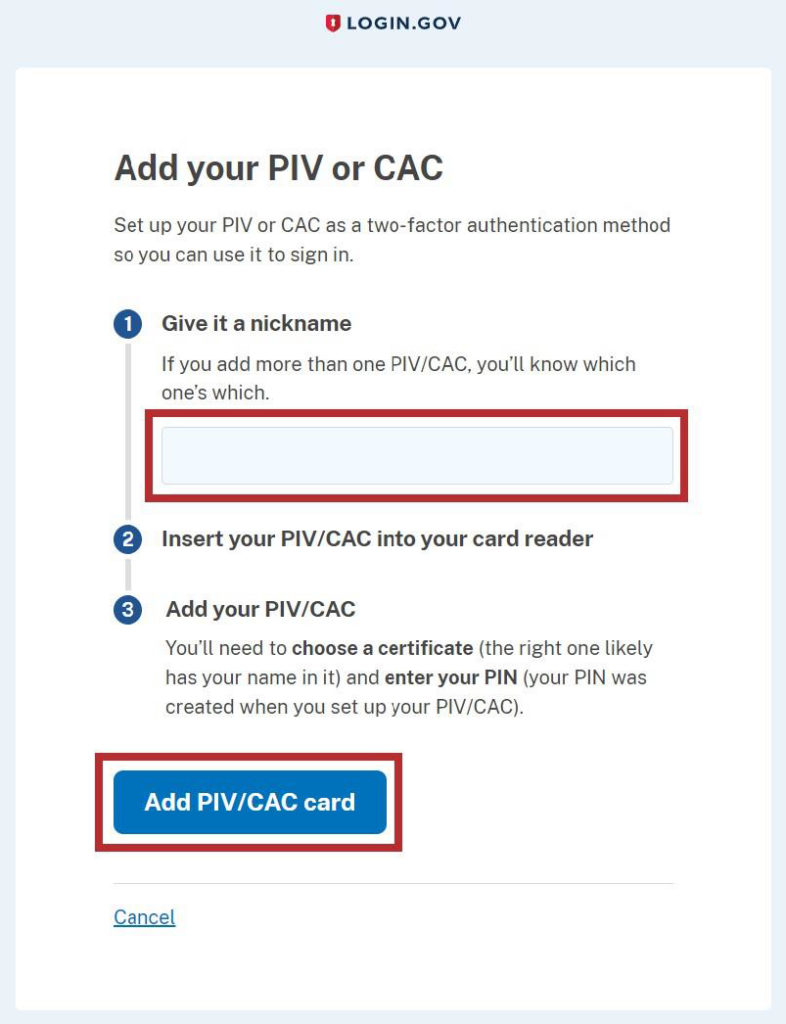
- The Login.gov “Add your PIV or CAC” screen appears. Enter a nickname in the Give it a nickname field, insert your PIV/CAC card into a card reader, and click the Add PIV/CAC card button at the bottom.
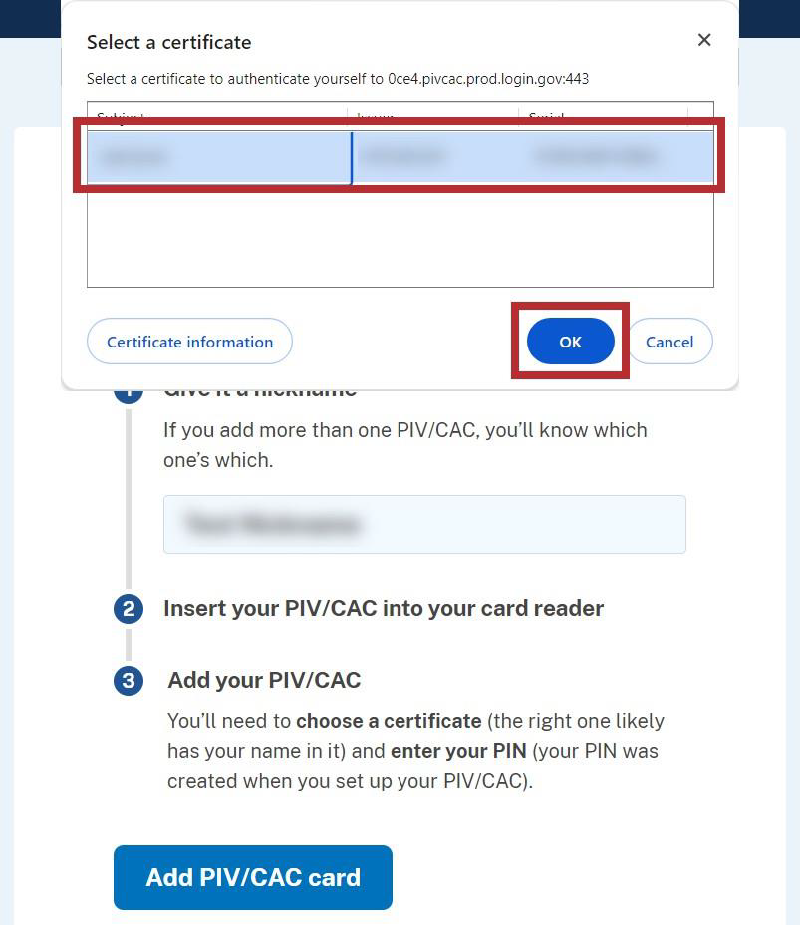
- In the browser window, select the correct PIV certificate and click the OK button in the browser.
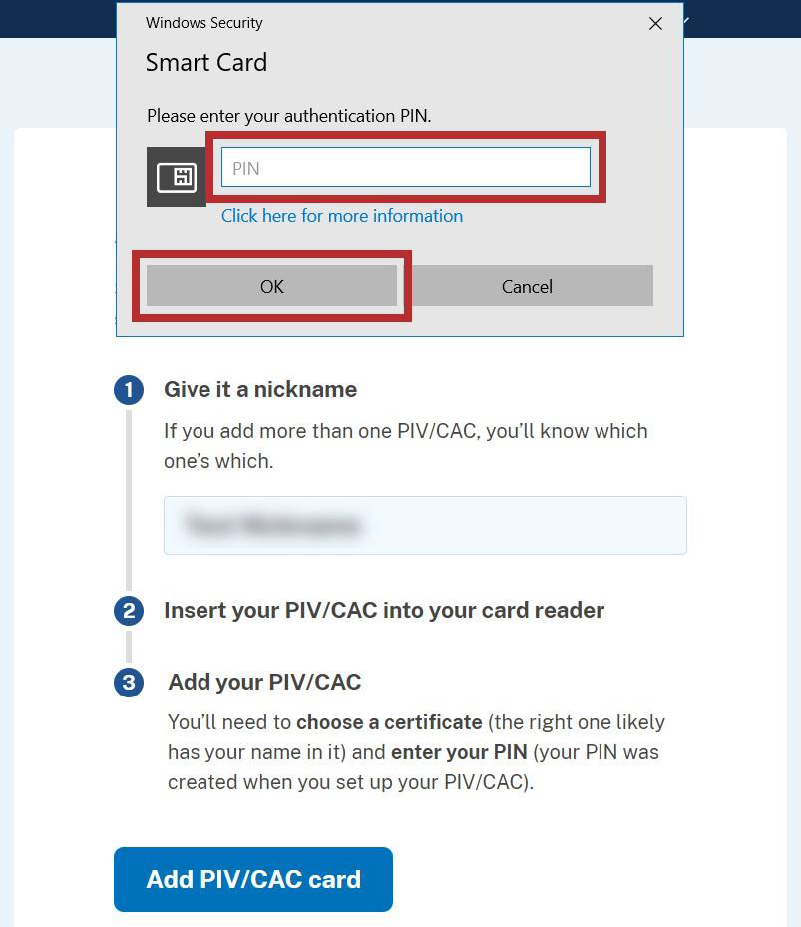
- In the new browser window, enter the PIV PIN in the PIN field and click the OK button.
- The Login.gov “Your account” screen reappears with the message, “PIV/CAC card linked successfully”.