Overview
Functionality for Grantor users to log into GrantSolutions through Login.gov is available. Grantor users
may log into GrantSolutions and other participating grants systems (e.g., SAM.gov and Grants.gov)
through Login.gov, reducing the burden of managing multiple usernames and passwords.
Grantor users must use a Personal Identity Verification (PIV) card to log into GrantSolutions through
Login.gov. Grantor users must create a Login.gov account and add a PIV card to the account prior to
attempting to log in through Login.gov using a PIV card.
Create a Login.gov Account
To log into GrantSolutions through Login.gov, a Grantor user must associate a GrantSolutions email address with a Login.gov account. If the user does not have a Login.gov account, create one using the email address associated with the GrantSolutions account. Perform the following steps to create a Login.gov account:
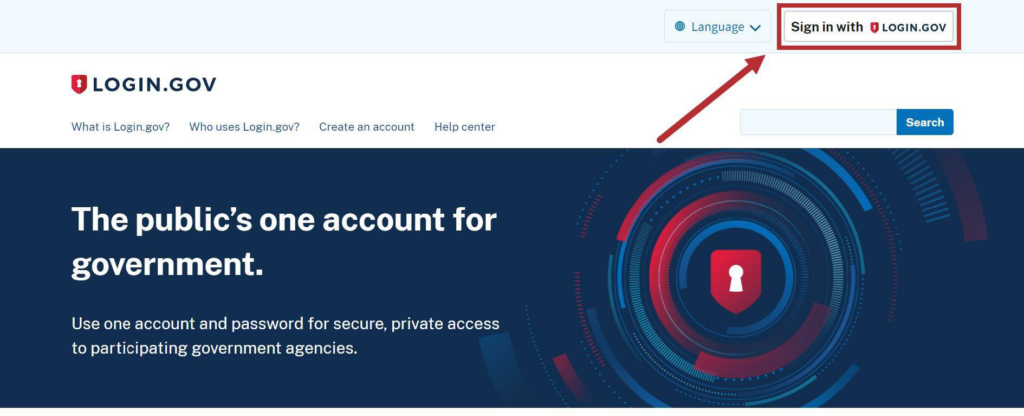
- From a browser such as Google Chrome, navigate to www.login.gov and click the Sign in with Login.gov button in the top right corner.
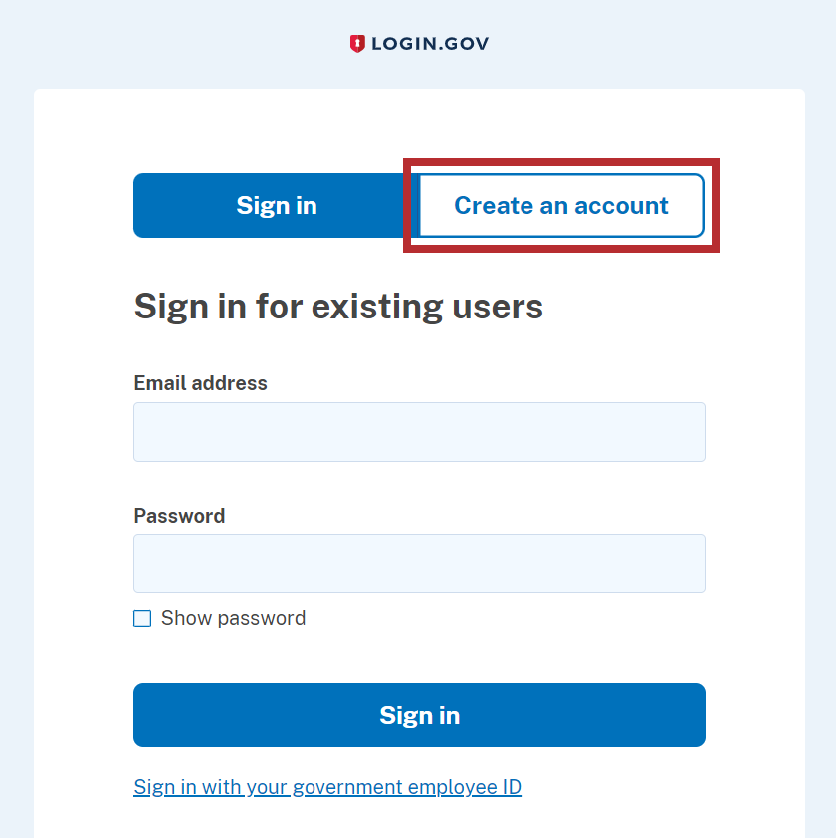
- The Login.gov “Sign in” screen appears. Click the Create an account button.
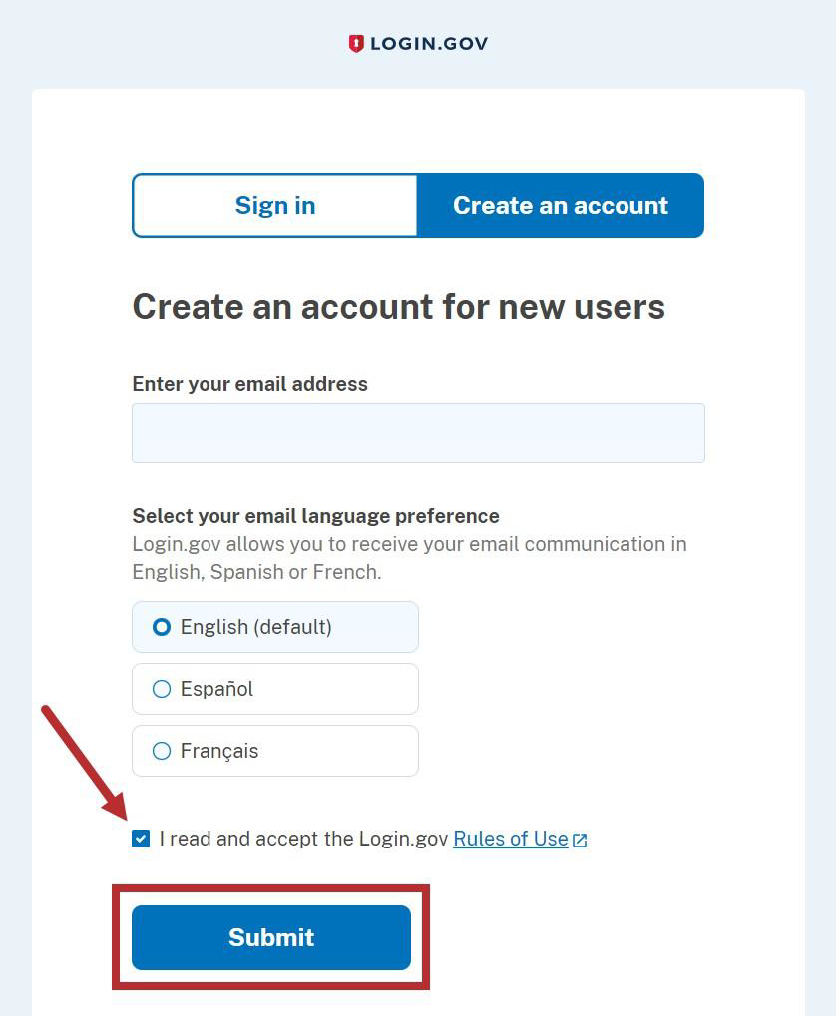
- On the Login.gov “Create an account” screen, select the Rules of Use checkbox and click the Submit button.
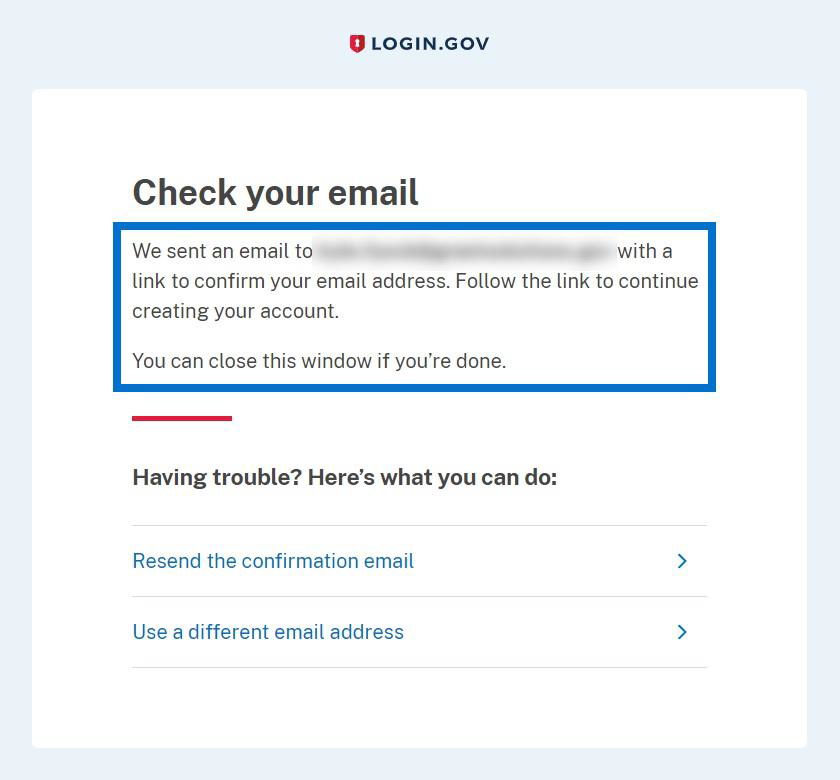
- The Login.gov “Check your email” screen appears with a message that an email is sent to the user email inbox with a link to confirm the email address.
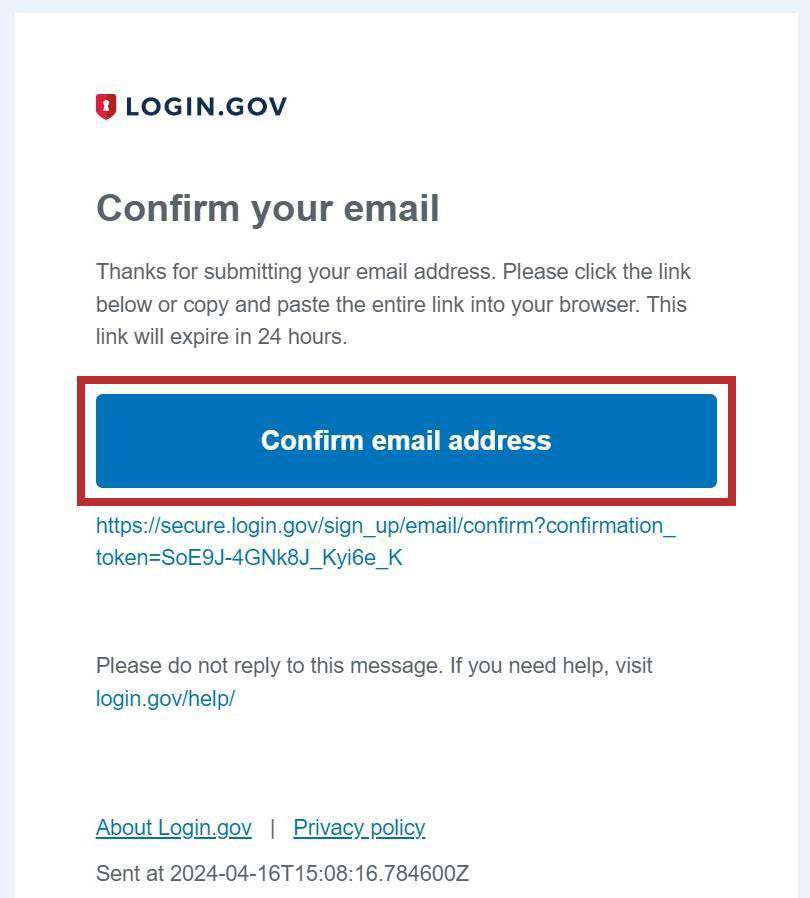
- The user receives an email from no-reply@login.gov with the subject “Confirm your email.” In the email, click the Confirm email address button or copy and paste the link below it into a browser.
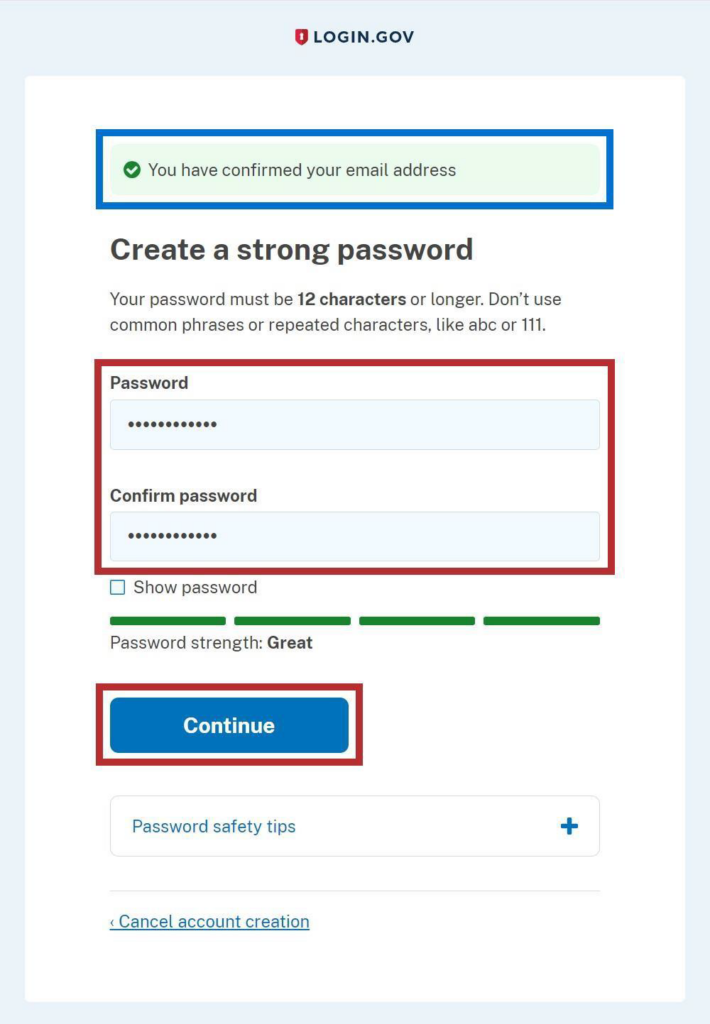
- The Login.gov interface opens and the Login.gov “Create a strong password” screen appears with the message, “You have confirmed your email address.” Enter a desired password in the Password field, enter the same password in the Confirm password field, and click the Continue button.
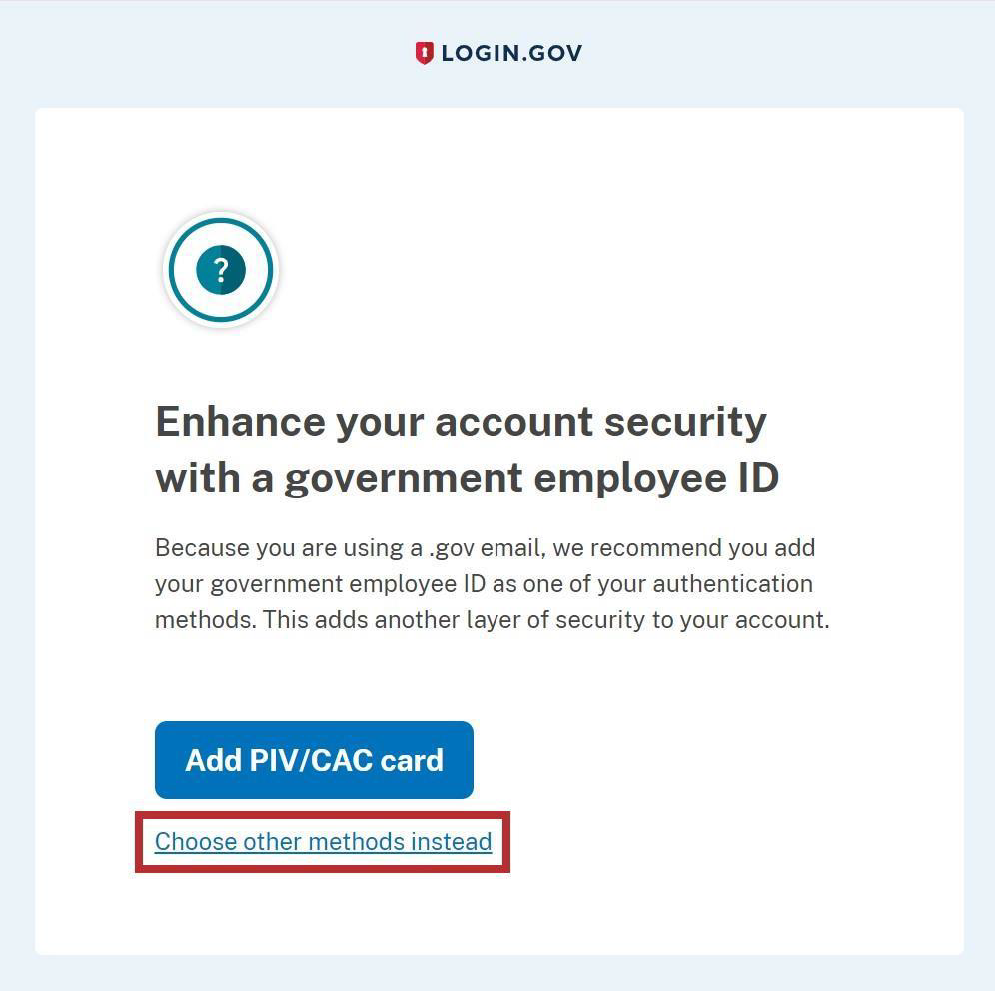
- The Login.gov “Enhance your account security with a government employee ID” screen appears. Click the Choose other methods instead link.
- The Login.gov “Authentication method setup” screen appears. Using the radio buttons, select the desired authentication method for Login.gov and click the Continue button.
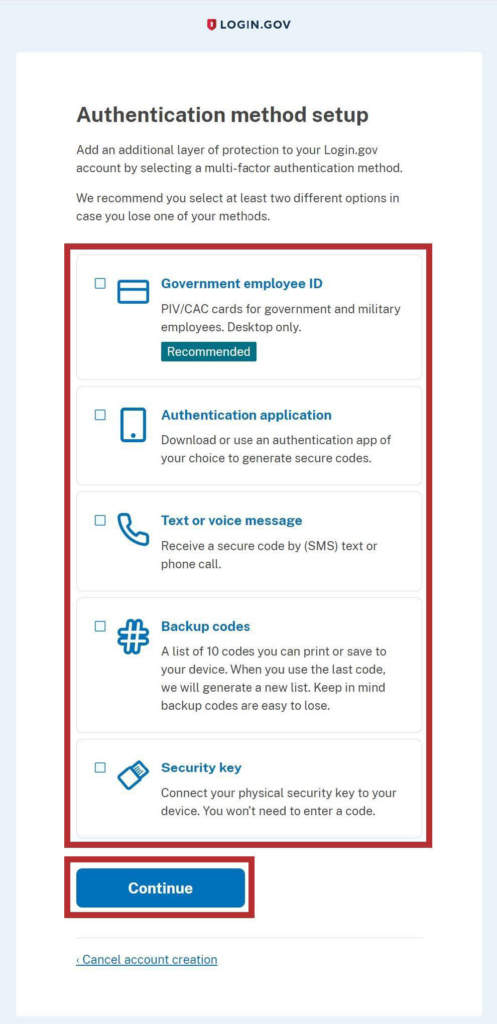
- Depending on the authentication method chosen on the Login.gov “Authentication method setup” screen, a specific authentication process screen appears. Follow instructions on each proceeding authentication screen to successfully complete authentication.
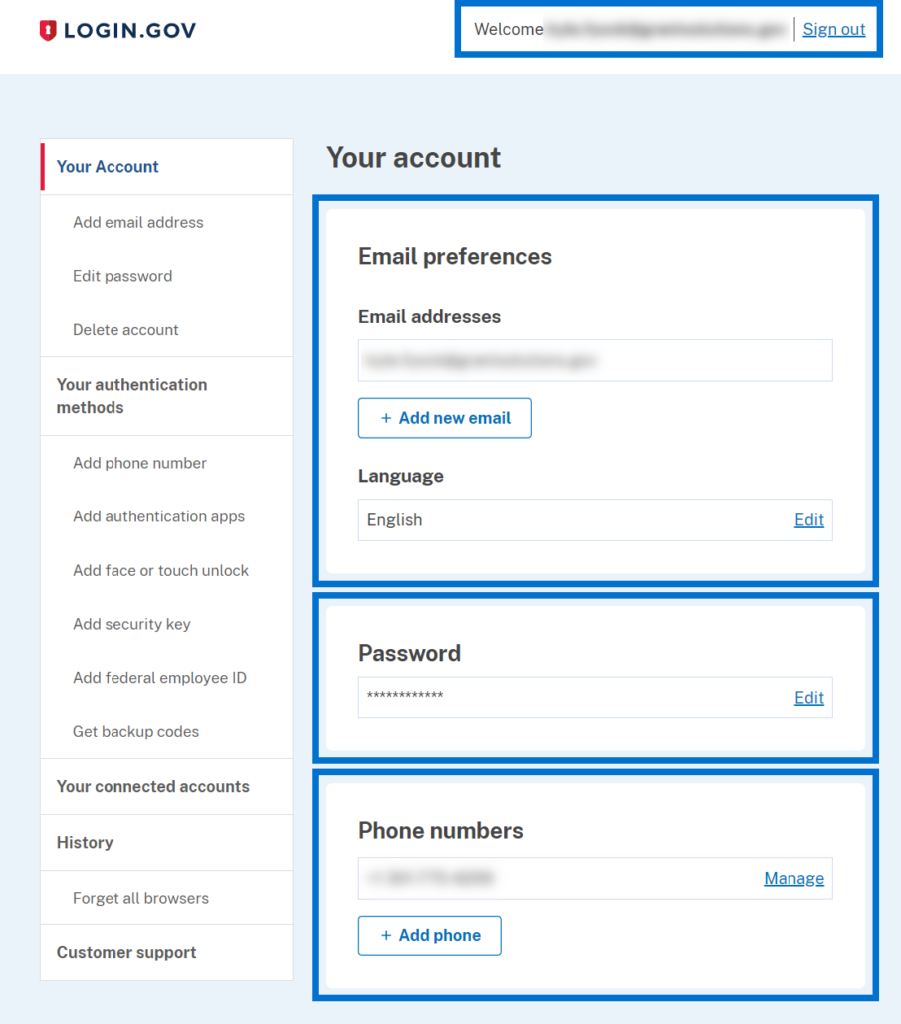
- The Login.gov account is successfully created and the Login.gov “Your account” screen appears with information specific to the user account. This screen includes the following key features:
- Welcome greeting, username, and Sign Out link in the top right corner.
- Email preferences section with Email addresses listed, preferred Language, and +Add email button.
- Password section with user password.
- Phone numbers section with phone numbers and +Add phone button.
Add a GrantSolutions Email Address to a Login.gov Account
A Grantor user with an existing Login.gov account can add an email address associated with a GrantSolutions account to the Login.gov account to access GrantSolutions. If a Grantor user has an existing Login.gov account, perform the following steps to add the email address associated with the GrantSolutions account to the Login.gov account:
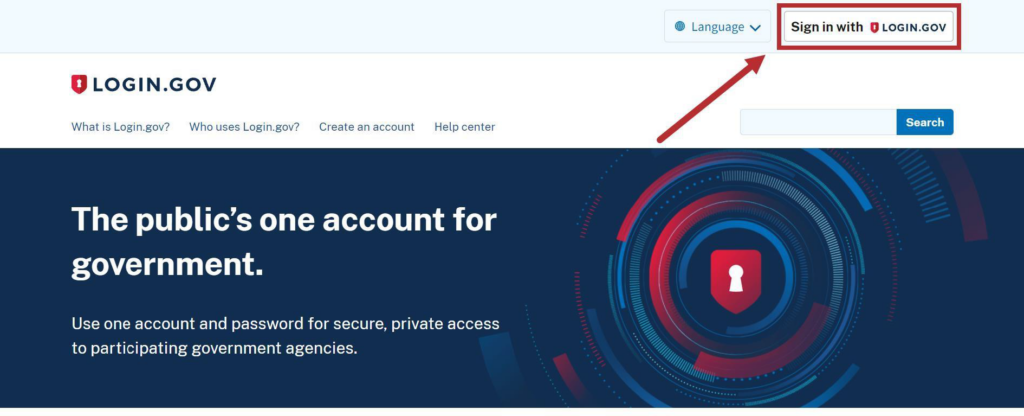
- From a browser such as Google Chrome, navigate to www.login.gov and click the Sign in with Login.gov button in the top right corner.
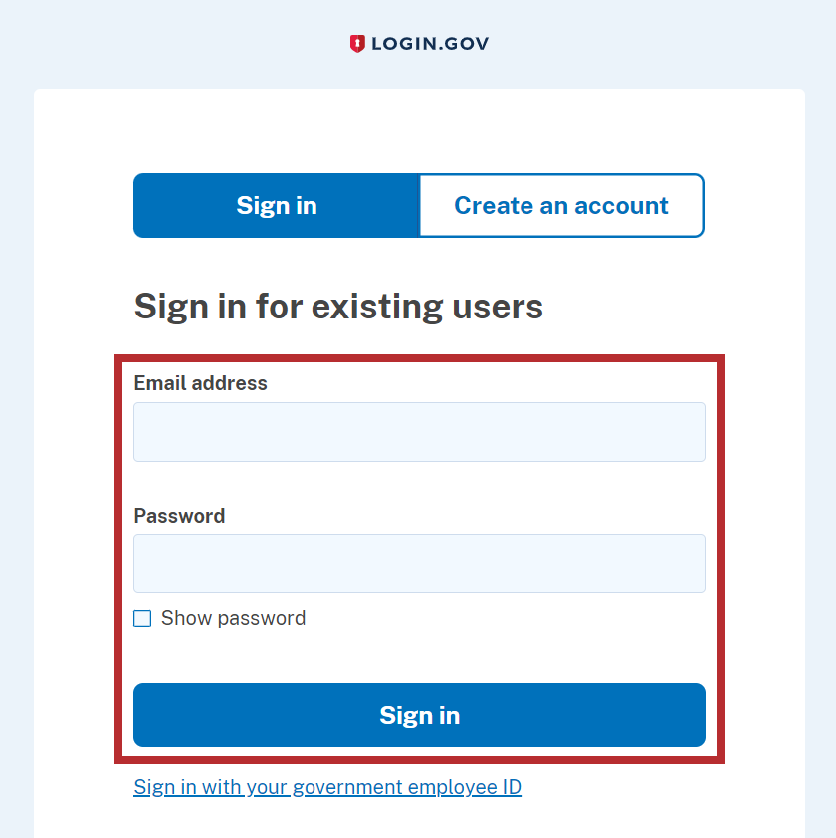
- The Login.gov “Sign in” screen appears. Enter the existing Login.gov Email address and Password and click the Sign in button to log into Login.gov.
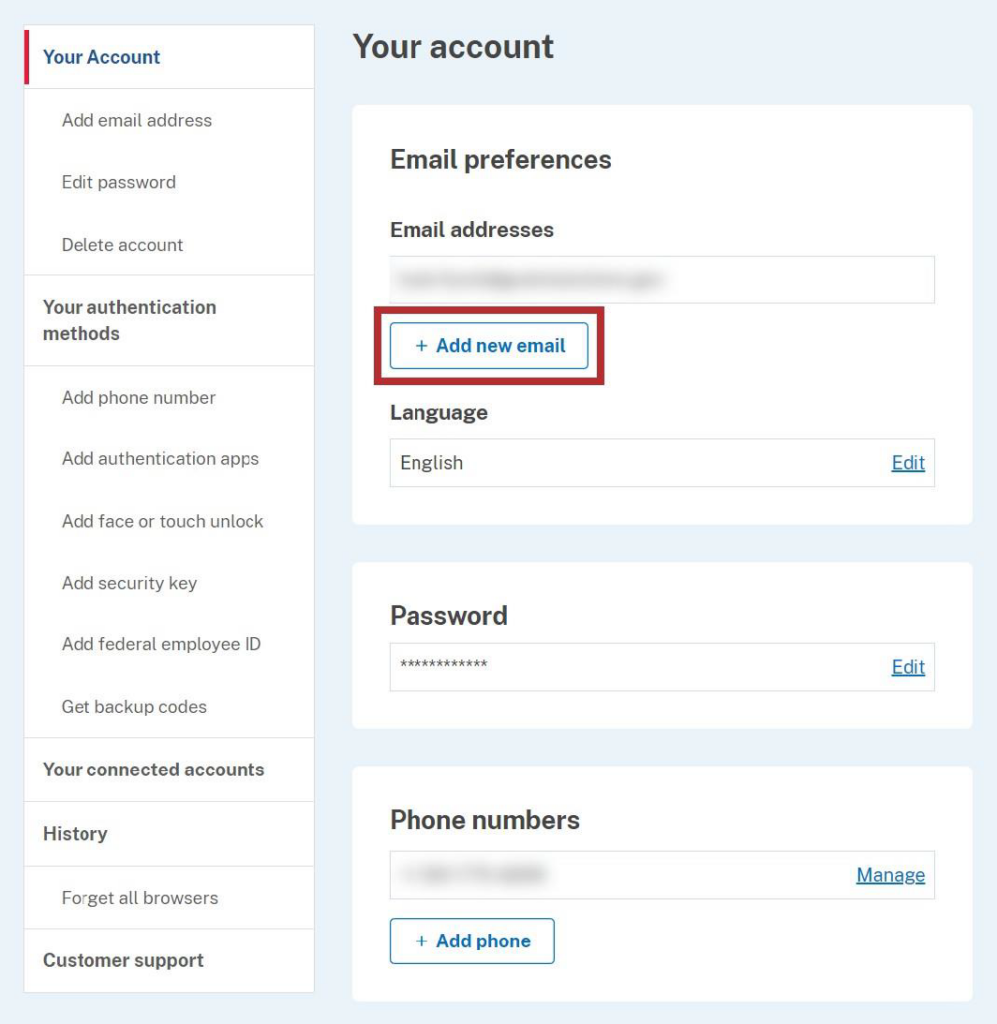
- The Login.gov “Your account” screen appears. Email addresses currently associated with the Login.gov account appear in the Email addresses list of the Email preferences section.
To add the email address associated with the GrantSolutions account to the Login.gov account, click the +Add new email button in the Email preferences section.
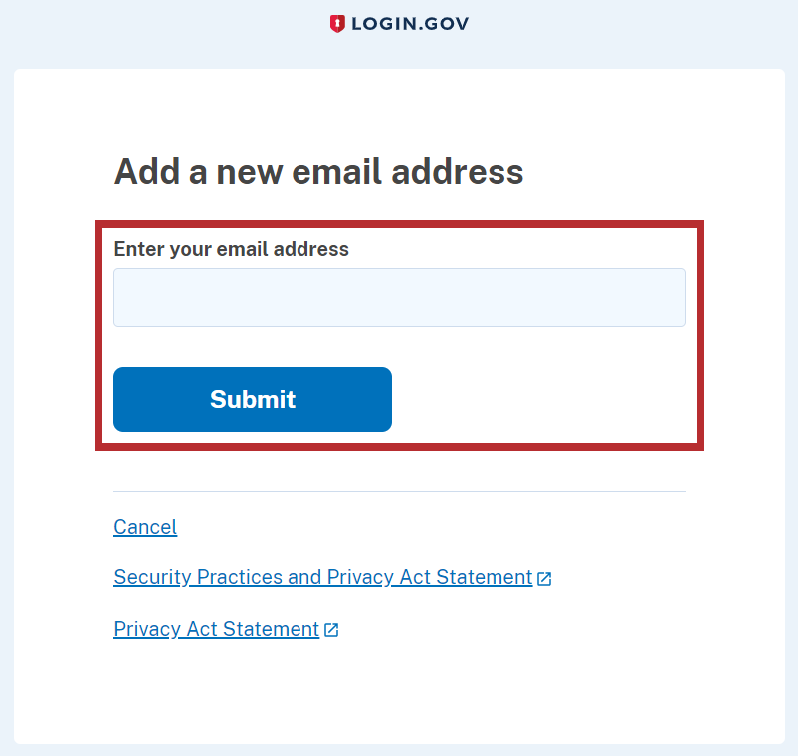
- The Login.gov “Add a new email address” screen appears. Enter the email address associated with the GrantSolutions account in the Enter your email address field and click the Submit button.
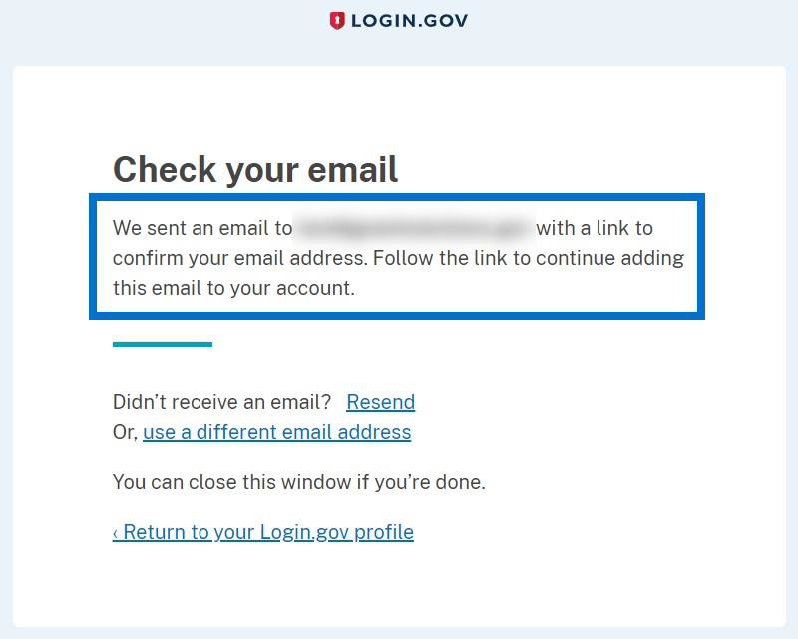
- The Login.gov “Check your email” screen appears with a message that an email is sent to the user email inbox with a link to confirm the email address.
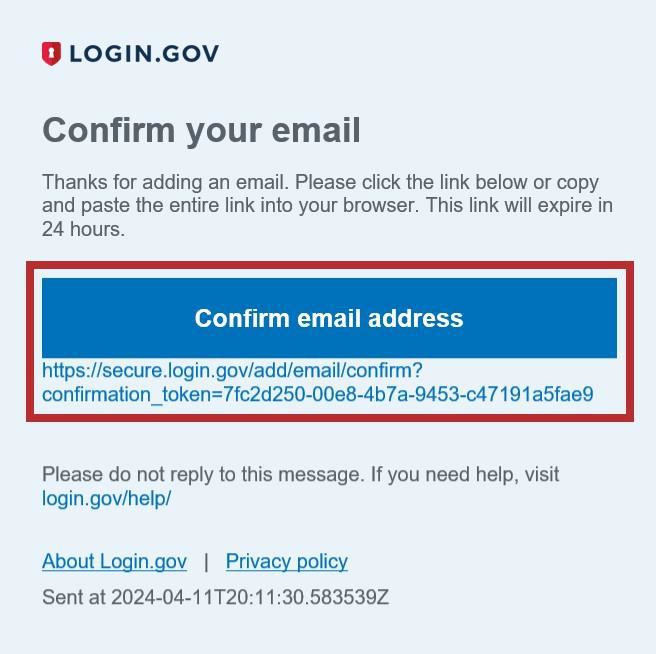
- The user receives an email from no-reply@login.gov with the subject “Confirm your email.” In the email, click the Confirm email address button or copy and paste the link below it into a browser.
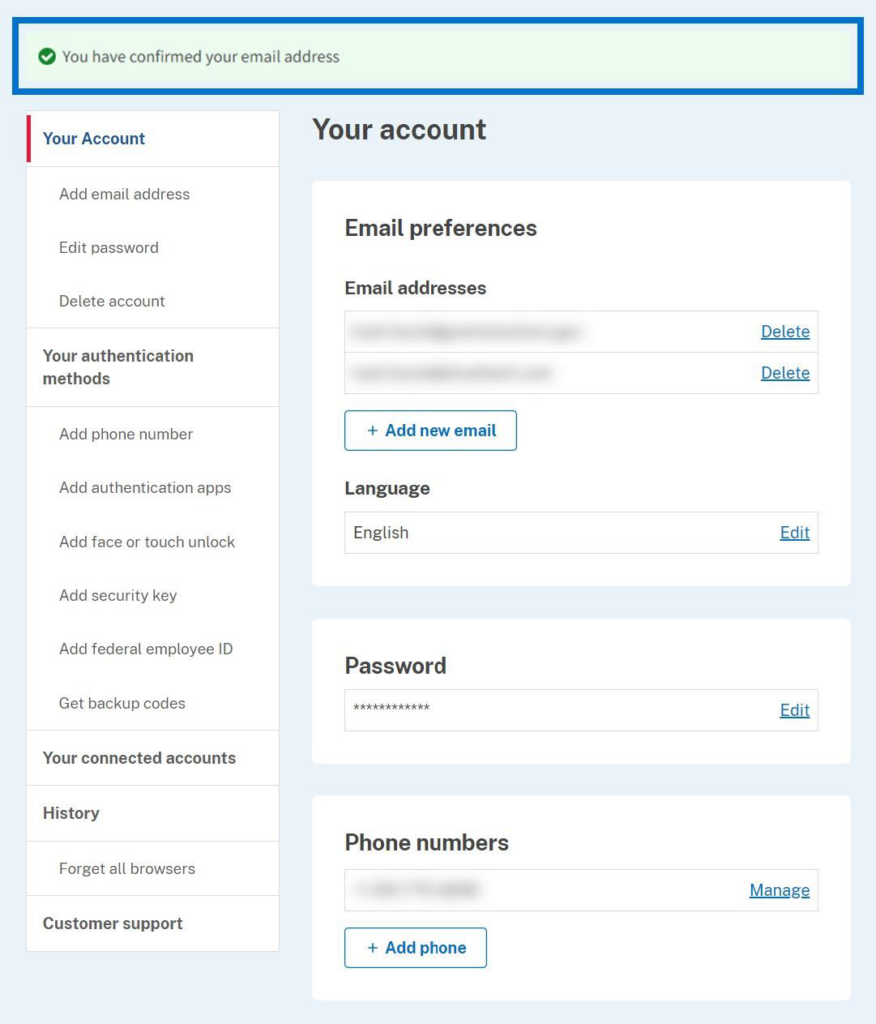
- The Login.gov “Your Account” screen reappears with the message, “You have confirmed your email address.” The GrantSolutions email address is successfully added to the Login.gov account and appears in Email addresses list of the Email preferences section.
Add a PIV Card to a Login.gov Account
A Grantor user can add a Personal Identity Verification (PIV) card to a Login.gov account to log into GrantSolutions. A Grantor user must log into GrantSolutions through Login.gov using a PIV card.
If the user has an existing Login.gov account, perform the following steps to add a PIV card to the Login.gov account:
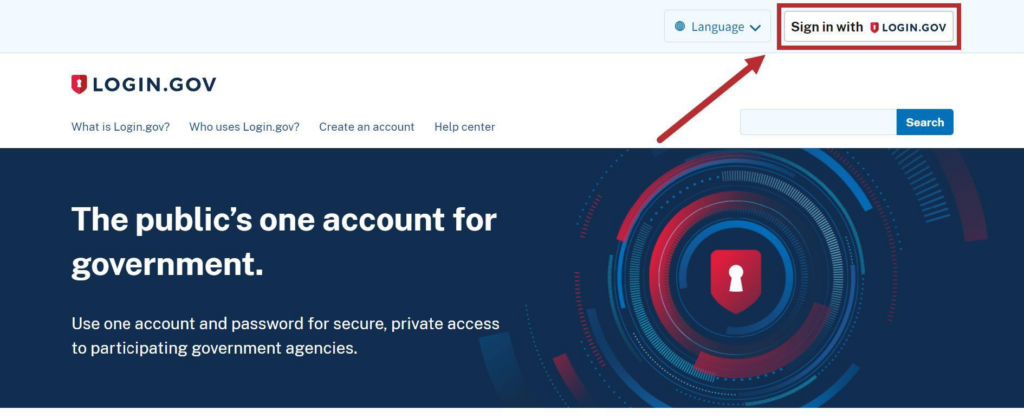
- From a browser such as Google Chrome, navigate to www.login.gov and click the Sign in with Login.gov button in the top right corner.
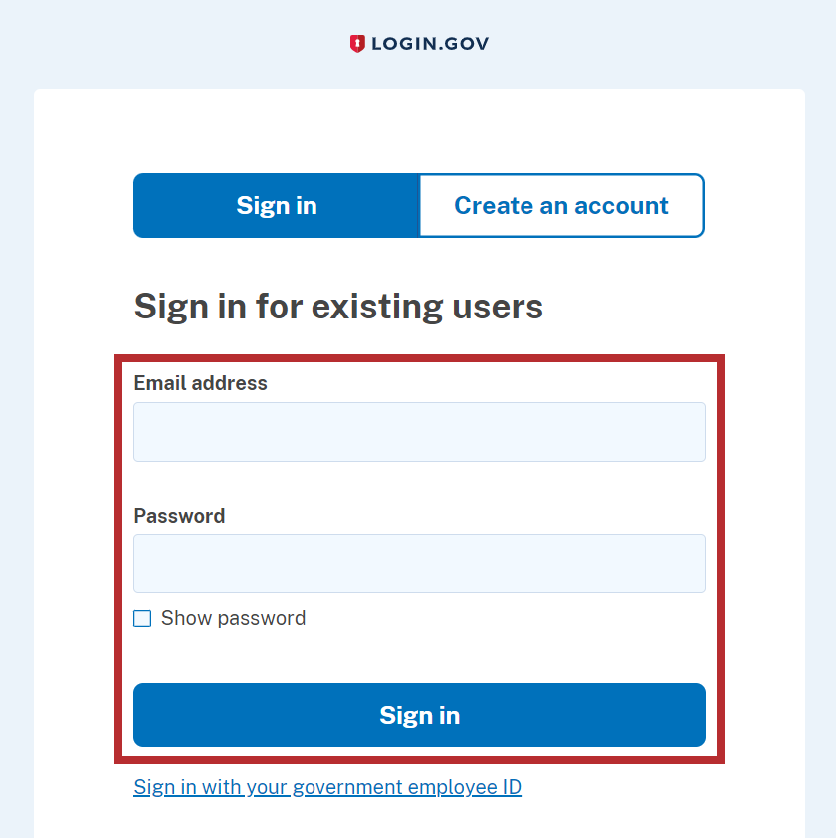
- The Login.gov “Sign in” screen appears. Enter the existing Login.gov Email address and Password and click the Sign in button to log into Login.gov.
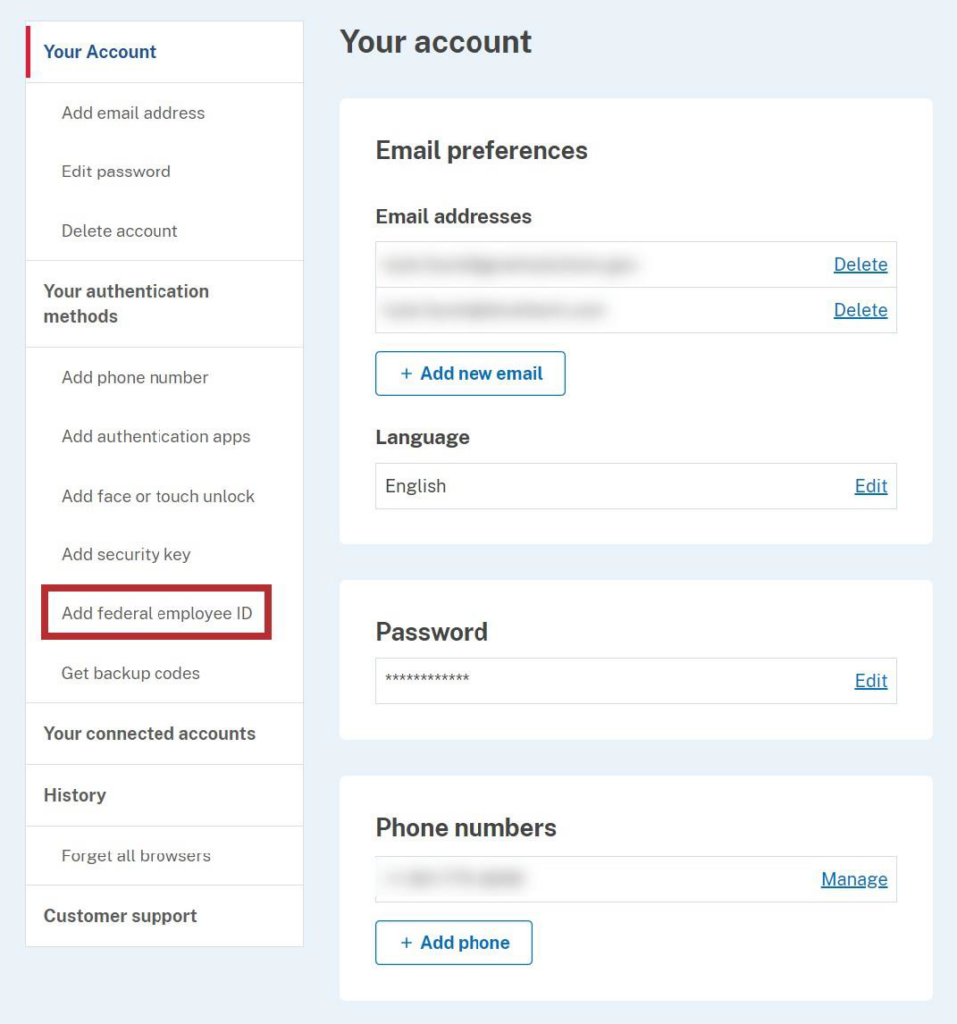
- The Login.gov “Your account” screen appears. Click the Add federal employee ID button in the Your authentication methods section of the left menu bar.
- The Login.gov “Add your PIV or CAC” screen appears. Enter a nickname in the Give it a nickname field, insert your PIV/CAC card into a card reader, and click the Add PIV/CAC card button at the bottom.
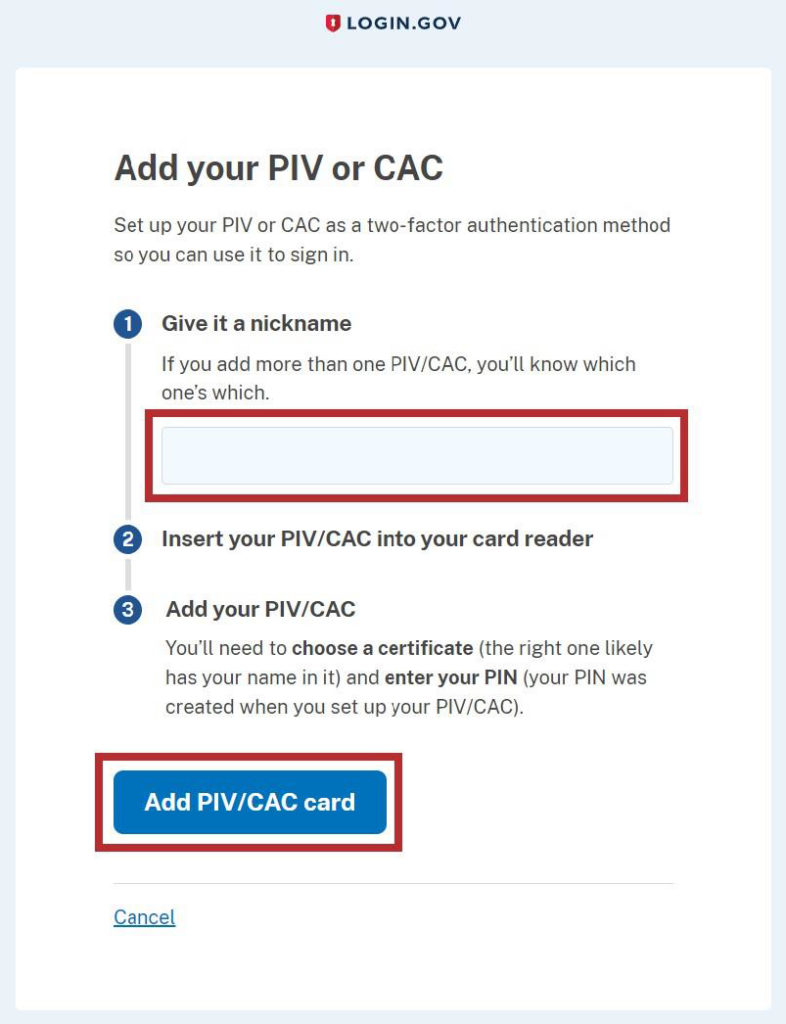
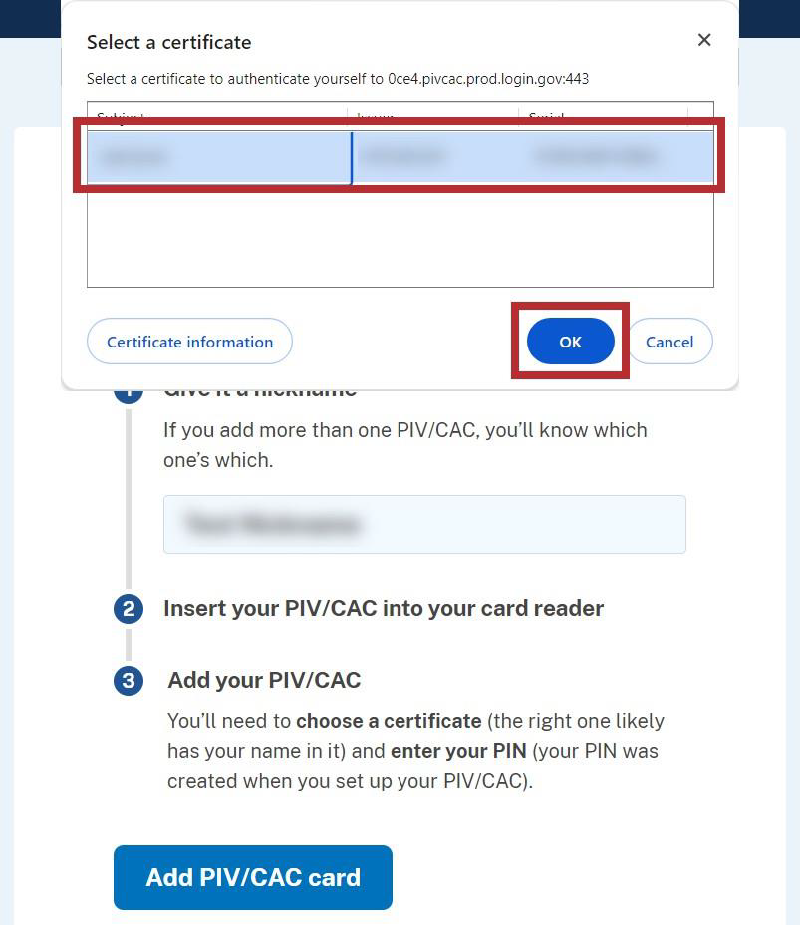
- In the browser window, select the correct PIV certificate and click the OK button in the browser.
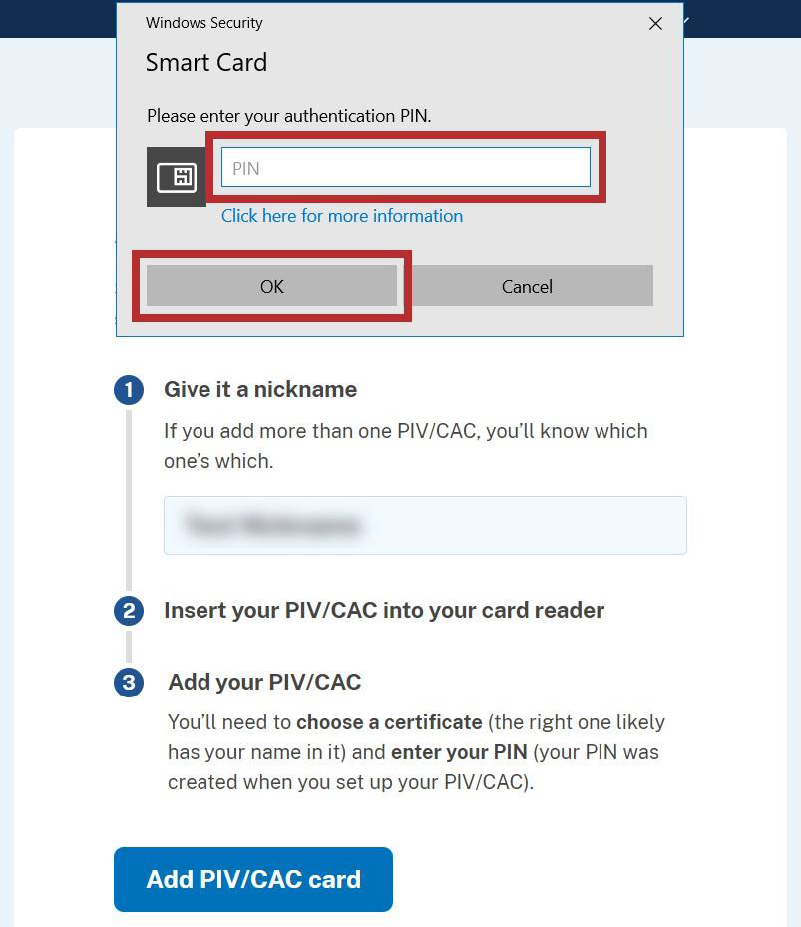
- In the new browser window, enter the PIV PIN in the PIN field and click the OK button.
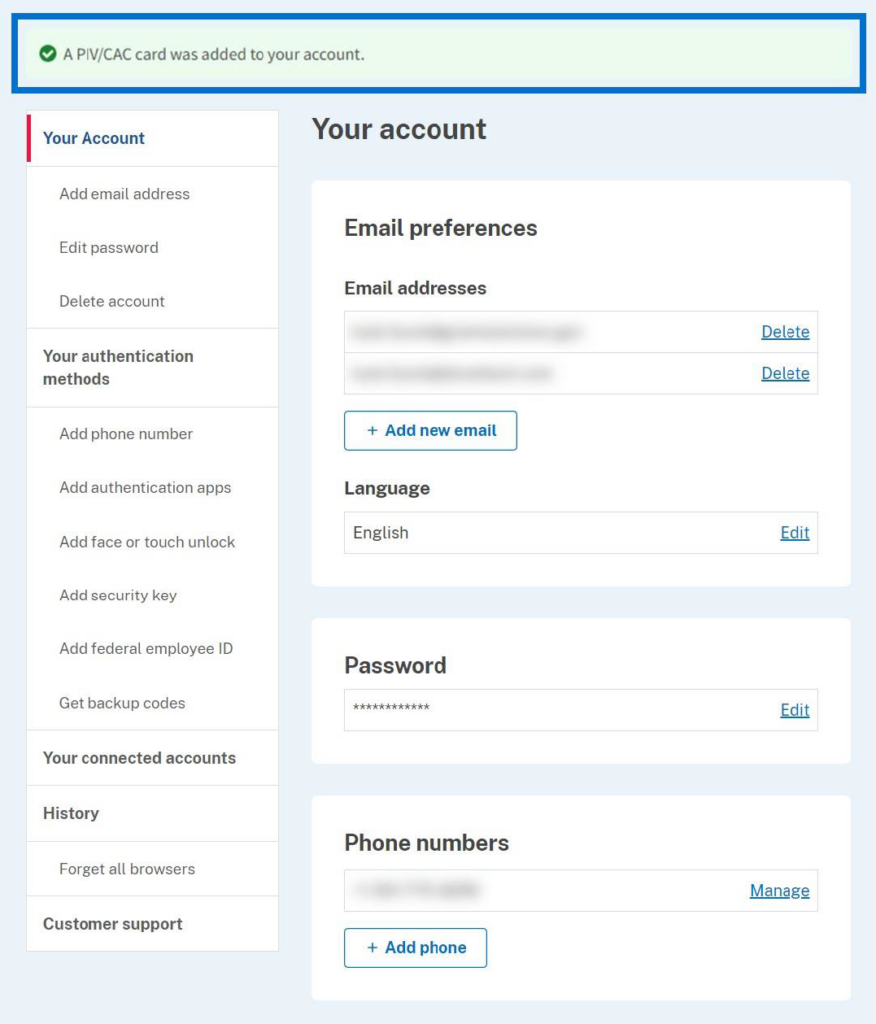
- The Login.gov “Your account” screen reappears with the message, “PIV/CAC card linked successfully”.
Log into GrantSolutions Through Login.gov Using PIV
A Grantor user email address associated with a Login.gov account may log into GrantSolutions through Login.gov. If logging into GrantSolutions through Login.gov, a Grantor user must use a PIV card associated with the Login.gov account to do so. The Grantor user should create a Login.gov account and add a PIV card to the account prior to attempting to log into GrantSolutions through Login.gov using the PIV card (see Add a PIV Card to a Login.gov Account section).
To log into GrantSolutions through Login.gov using a PIV card, perform the following steps:
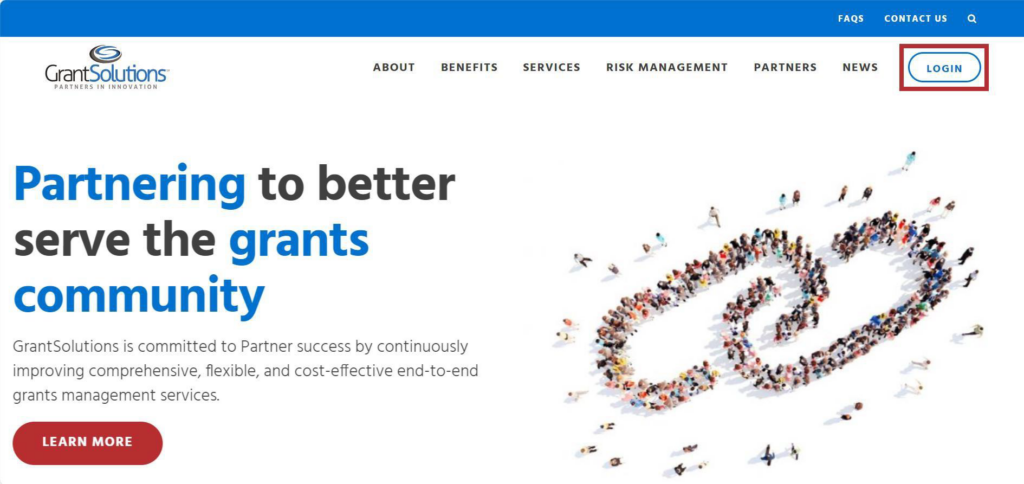
- From a browser such as Google Chrome, navigate to www.grantsolutions.gov and click the Login button.
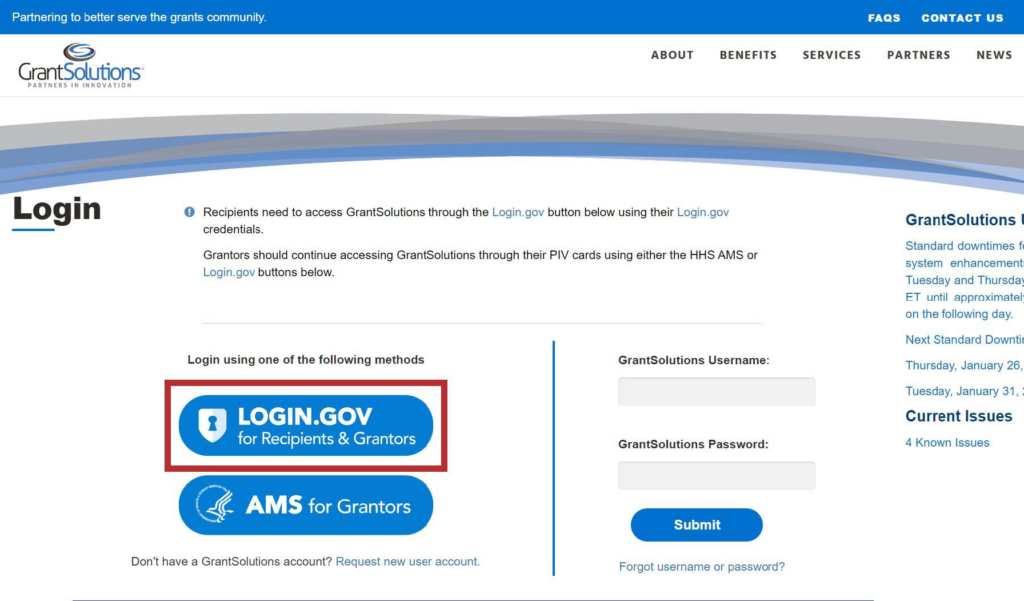
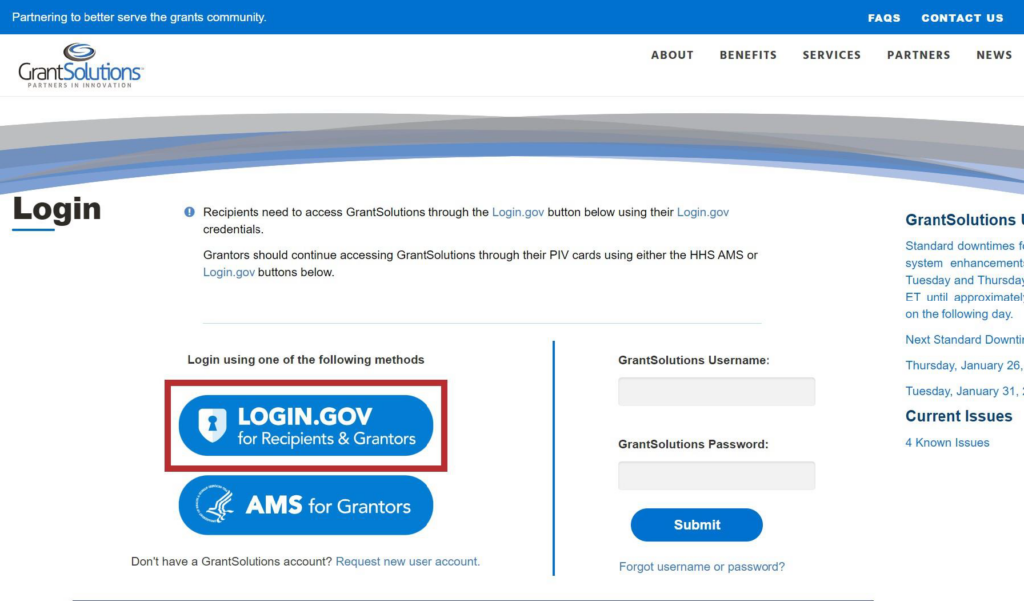
- The GrantSolutions “Login” screen appears. Click the Login.gov button.
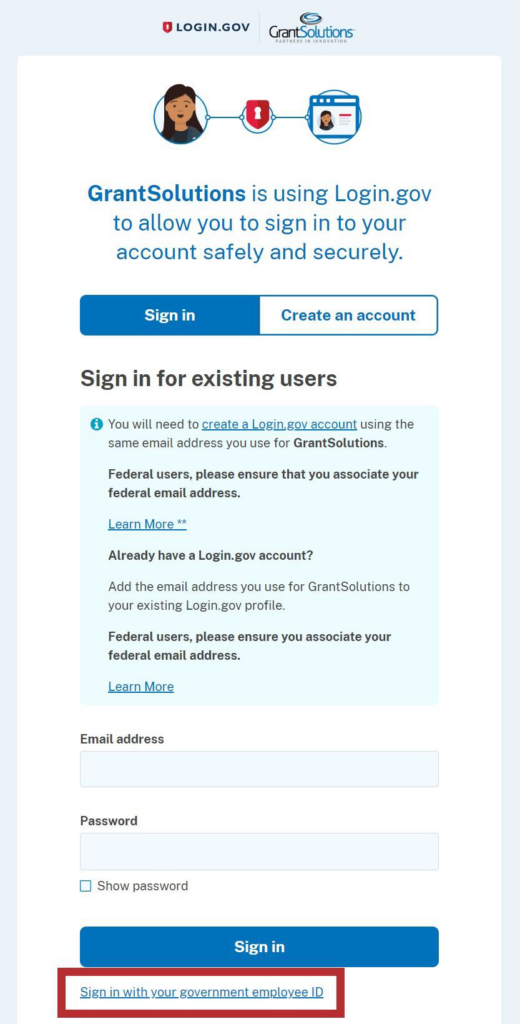
- The Login.gov “Sign in” screen appears, this time linked to GrantSolutions. Click the Sign in with your government employee ID link at the bottom.
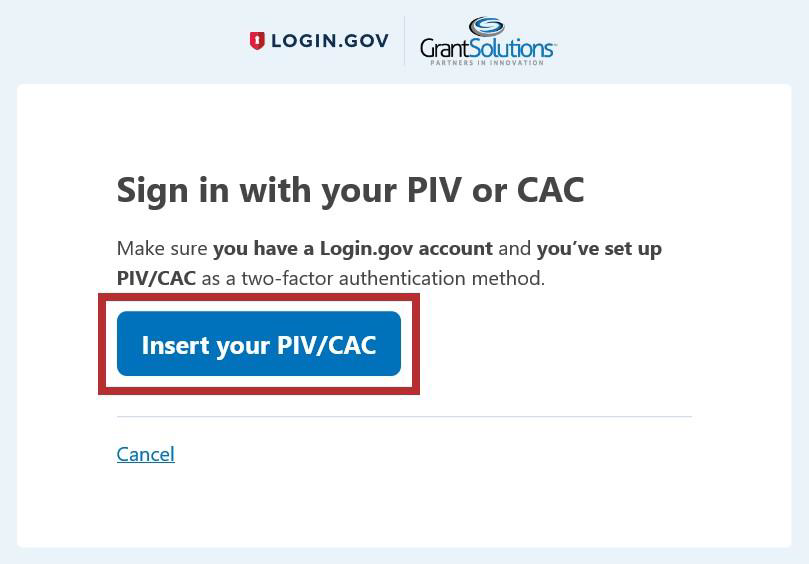
- The Login.gov “Sign in with your PIV or CAC” screen appears. Click the Insert your PIV/CAC button.
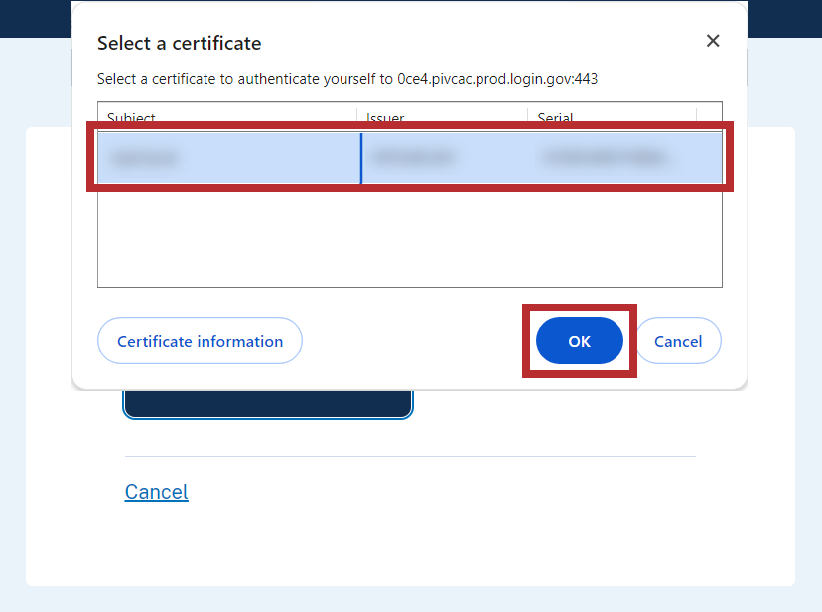
- In the browser window, select the correct PIV certificate and click the OK button in the browser.
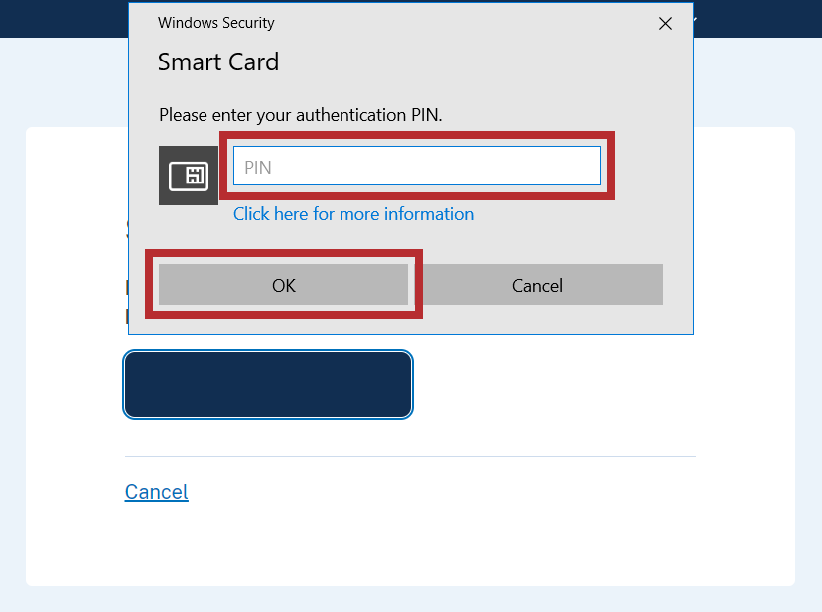
- In the new browser window, enter the PIV PIN in the PIN field and click the OK button.
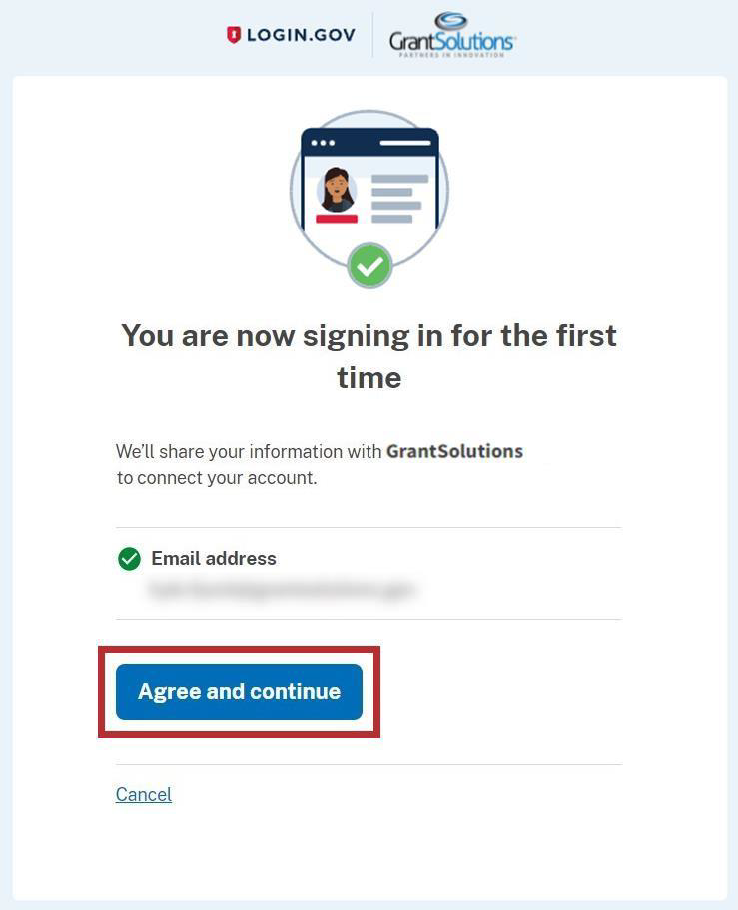
- The Login.gov “You are now signing in for the first time” screen appears with the email address used for the Login.gov account. Click the Agree and continue button at the bottom.
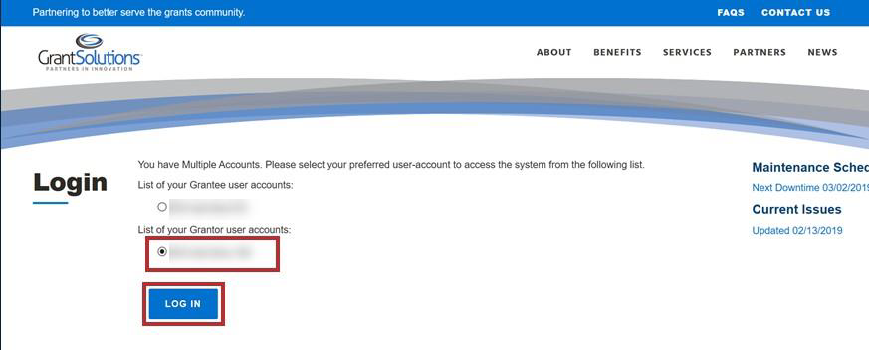
- If the user has multiple accounts associated to the PIV card, the GrantSolutions “Login” screen appears. The PIV card may be associated to both Grantor and Grant Recipient accounts. Select the radio button for the Grantor account to log in with and click the LOG IN button.
Note: If the user has one account only, the user bypasses the GrantSolutions “Login” screen and is routed directly to GrantSolutions.
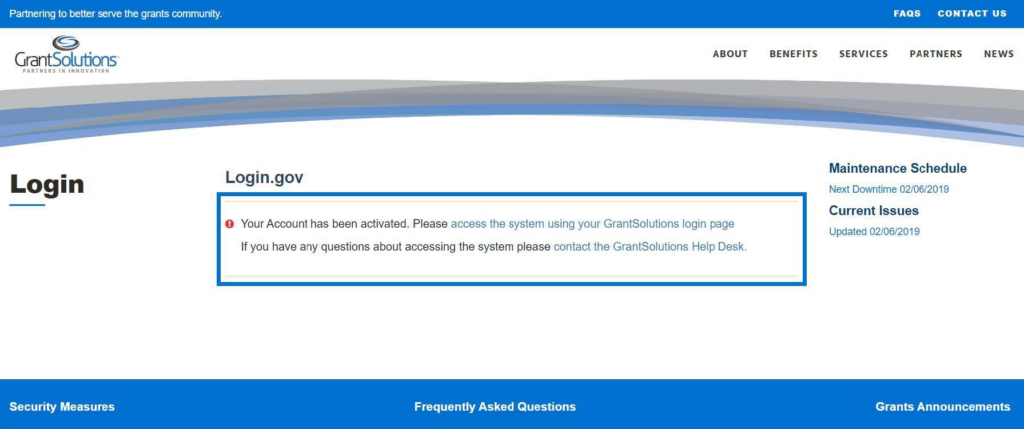
- A message appears stating “Your Account has been activated. Please access the system using your GrantSolutions login page. If you have any questions about accessing the system please contact the GrantSolutions Help Desk.”
Note: This message only appears upon the first log in attempt. Each attempt after the account is activated results in successful log in.
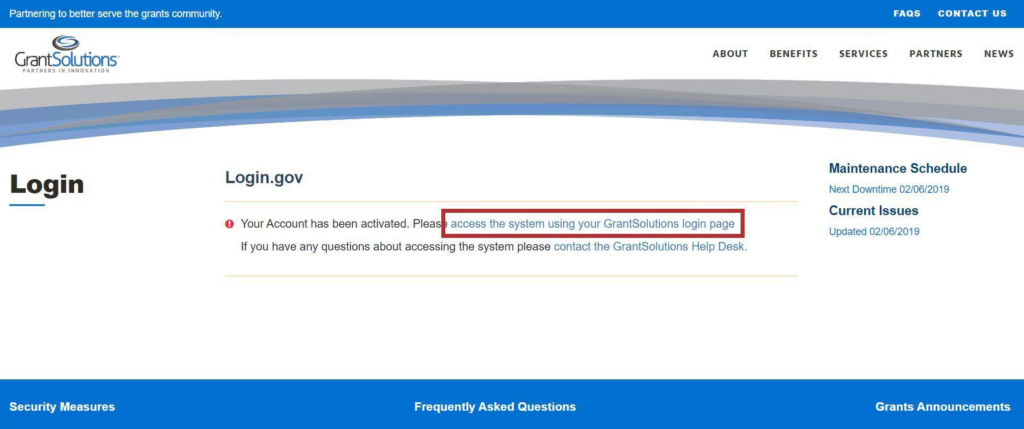
- Click the access the system using your GrantSolutions login page link to navigate to the GrantSolutions “Login” screen.
- On the GrantSolutions “Login” screen, click the Login.gov button.
- On the Login.gov “Sign in” screen, repeat the steps in the Log Into GrantSolutions Through Login.gov Using PIV section to log in.
The GrantSolutions “Home” screen appears upon successful log in.