


Objectives
At the end of this lesson, the user will be able to:
- Identify elements of the GrantSolutions GMM screen, including the menu bar, links, and footer
- Use the menu bar to access various screens in the system
- Launch GrantSolutions Business Intelligence (BI) Dashboards
- Launch GrantSolutions Recipient Insight
Navigation
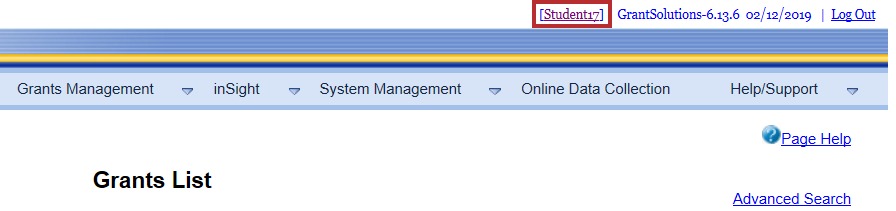
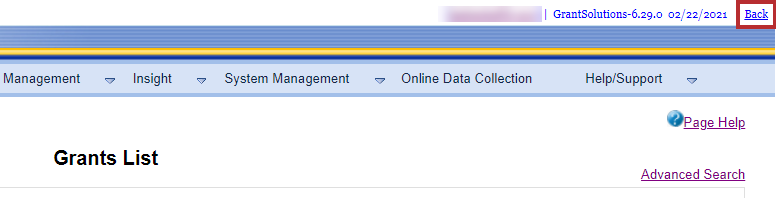
After logging into the GrantSolutions GMM, the landing page is the “Grants List” screen. Each GrantSolutions GMM screen contains the main menu bar, footer, access to the user’s profile and a link to log out of the system.
Username Link
- Click the Username link above the menu bar to access the “Profile Update” screen.
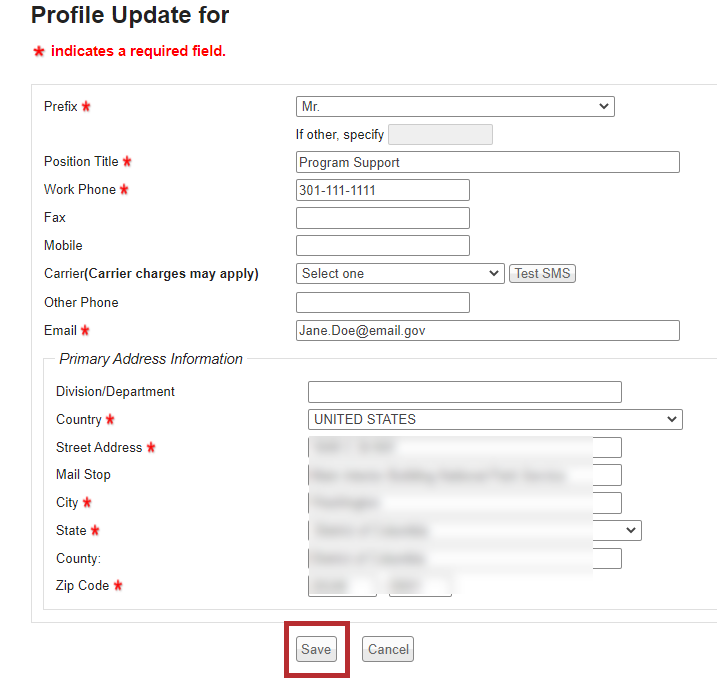
- The “Profile Update for” screen appears. Make any desired changes and click the Save button.
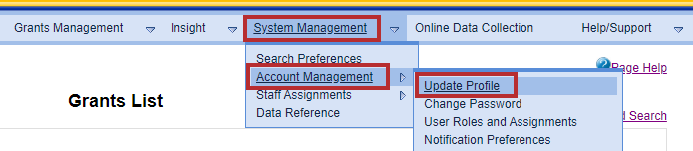
Tip: Another place a user can access the Profile Update for is from the GMM menu bar by selecting System Management > Account Management > Update Profile.
Note: Ensure contact information is up to date.
Log Out Link
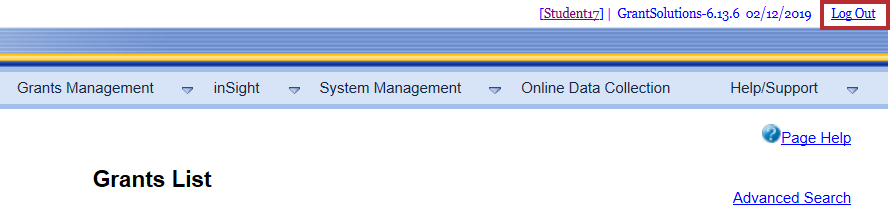
- Click the Log Out link in the top right corner of the screen to properly exit the system.
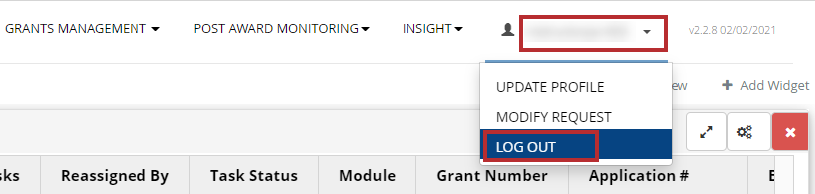
Note: For Grantor agencies that use Portal, to log out of GrantSolutions GMM
- Click the Back link.
- From the Portal menu bar, click Username > Log Out.
GrantSolutions Footer
The GrantSolutions GMM footer contains the following information and links:
- GrantSolutions User Support contact information
- A hyperlink to the GrantSolutions Contact Us screen
- The Web Accessibility policy
- The Privacy and Security Notice
- The Freedom of Information Act website
- Disclaimers

GMM Menu Bar
The GrantSolutions GMM menu bar is located at the top of each screen and provides menu options to navigate the system.

Use the mouse or keyboard to expand each menu item.
The Menu Options available are:
Grants List – navigates a user to the Grants List screen which houses all grants that have been awarded in GrantSolutions
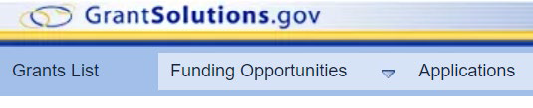
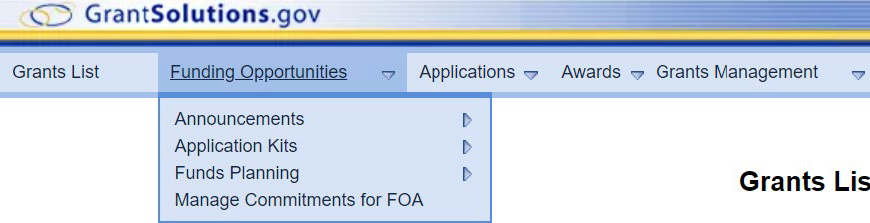
Funding Opportunities – provides a list of options for managing Announcements, Application Kits,
and Financial Accounts.
| Main Menu | Sub Menu | Tertiary Menu | Description |
|---|---|---|---|
| Funding Opportunities | |||
| Announcements | |||
| Manage Announcements | Search for or create announcements and funding opportunities | ||
| Close Announcements | Close announcements (set end dates) for funding opportunities | ||
| Application Kits | |||
| Program Enclosures | View or manage Program Enclosures | ||
| Grant Enclosures | View or manage Grant Enclosures | ||
| Application Kit Templates | Responsible staff sets up requirements for applications | ||
| Funds Planning | |||
| Manage Funds Planning | Create and establish parameters for financial accounts by grant program | ||
| Manage Financial Accounts | Add, transfer, or track funds within financial accounts | ||
| Manage Commitments for FOA | Manage commitments associated with its Announcements title |
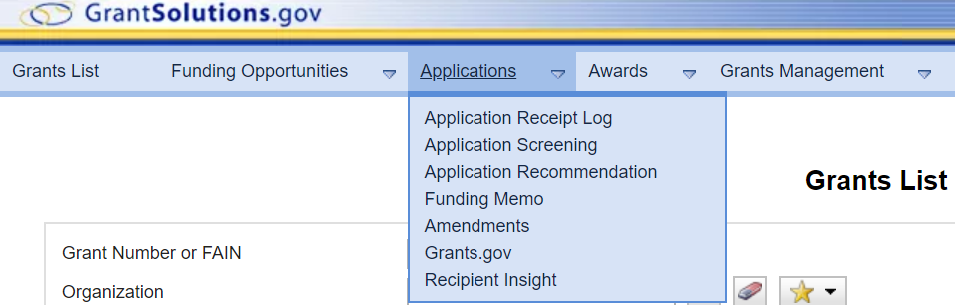
Applications – provides a list of options to receive, screen, review, and recommend a funding amount
for applications as well as view statistics on potential applicants in GrantSolutions Recipient Insight
| Main Menu | Sub Menu | Description |
|---|---|---|
| Applications | ||
| Application Receipt Log | Repository of applications accepted from the Grants.gov Log Application screen, manually log, or submitted via GrantSolutions GMM. | |
| Application Screening | Search for eligible and ineligible applications. Intake and Business Reviews can be viewed or completed from this screen. | |
| Application Recommendation | Screen, score, select recommended decision, and recommended funding for submitted applications | |
| Funding Memo | Funding decision for application process | |
| Amendments | Search the number of active amendments for per Grant Program | |
| Grants.gov | Login to accept or reject applications from Grants.gov within GrantSolutions | |
| Recipient Insight | This tool brings together key data about applicants/recipient organizations from multiple external sources to one place for easy review and analysis |
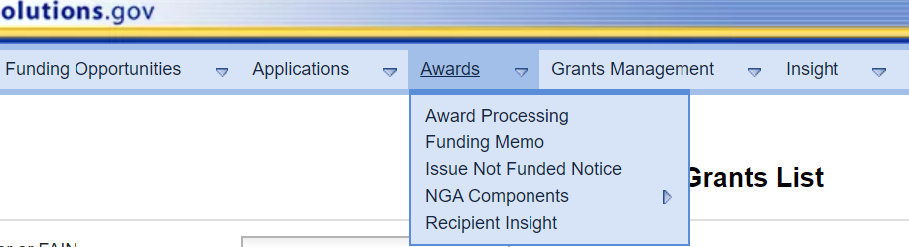
Awards – provides a list of options to prepare the award for issuance, create Terms and Conditions
templates, and view statistics on potential applicants in GrantSolutions Recipient Insight
| Main Menu | Sub Menu | Tertiary Menu | Description |
|---|---|---|---|
| Awards | |||
| Award Processing | Further process actions leading to an awarded grant | ||
| Funding Memo | Funding decision for application process (same as Funding Memo from the Applications menu) | ||
| Issue Not Funded Notice | Prepare not funded form letters and issue the not funded notices for pre-award applications. | ||
| NGA Components | |||
| Manage NGA Components | View, create, update, and delete global Notice of Grant Award components for a grant program. | ||
| Manage NGA Templates | Create, edit, and remove Notice of Grant Award Templates. | ||
| Recipient Insight | This tool brings together key data about applicants/recipient organizations from multiple external sources to one place for easy review and analysis |
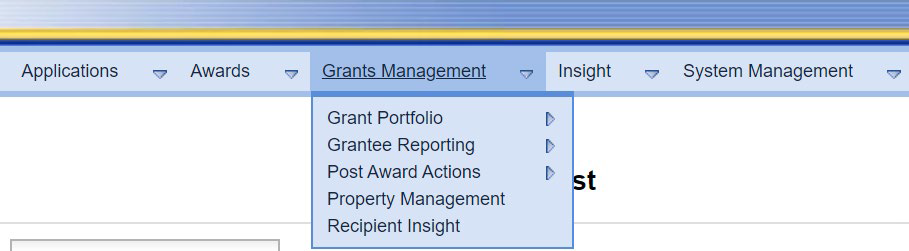
Grants Management – provides a list of options to manage post-award monitoring and to view
statistics on potential applicants in GrantSolutions Recipient Insight
| Main Menu | Sub Menu | Tertiary Menu | Description |
|---|---|---|---|
| Grants Management | |||
| Grant Portfolio | |||
| Amendments | Amendments Report screen – create a mini Amendments report based on search criteria. The report contains total amendments for a grant program, number of Amendments for the criteria entered, and total grants with active Amendments displayed. | ||
| Grant Notes | Grant Notes List screen | ||
| Track Terms & Conditions | Search for Terms and Conditions based on Grant Program and other criteria. | ||
| Rescind Expanded Authority | Search by Grant Program and other criteria to view Grants that may or may not have expanded authority. | ||
| Non-Competing Application Kits Management | Manage Non-Competing Continuation Kits | ||
| Assign Grantee Task | Create Bulk Tasks screen | ||
| Manage Reports | Activate PPR/FFR reporting for Grantees, view submitted reports, accept reports, or submit reports on behalf of grantee | ||
| Post Award Actions | |||
| Post Award Actions Management | Edit, manage, or adjust amendment types at the partner level | ||
| Post Award Action Kit Management | Establish kits for each type of amendment action | ||
| Project Assessment | Grantors can create quantitative or qualitative assessment questionnaires to measure key performance indicators of grant projects or applications | ||
| Property Management | Allows a Grantor to track real property from the initial purchase to disposition | ||
| Closeout | Access to the Closeout Module | ||
| Recipient Insight | This tool brings together key data about applicants/recipient organizations from multiple external sources to one place for easy review and analysis |
Insight – provides a list of options to access GrantSolutions Business Intelligence reports and Recipient Insight
| Main Menu | Sub Menu | Description |
|---|---|---|
| Insight | ||
| BI Dashboards | Develop meaningful analytics with a focus on outcomes. Particularly helpful for the Program Office | |
| Recipient Insight | This tool brings together key data about applicants/recipient organizations from multiple external sources to one place for easy review and analysis |

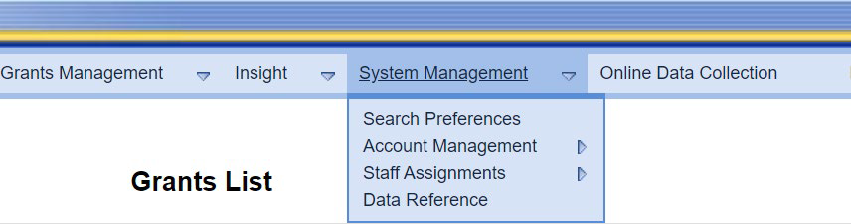
System Management – provides a list of options to manage account settings
| Main Menu | Sub Menu | Tertiary Menu | Description |
|---|---|---|---|
| System Management | |||
| Search Preferences | Set project categories available in a search | ||
| Account Management | |||
| Update Profile | User can edit their own information | ||
| Change Password | User can manually change their own password | ||
| User Roles and Assignments | User can view their roles and assignments | ||
| Notification Preferences | User can set which notifications they choose to receive from a pre-defined list | ||
| Staff Assignments | |||
| Program Office | Program Office Assignment List | ||
| Grants Office | Grant Office Assignment List | ||
| Data Reference | Look Up Table Maintenance for CFDA codes. Add, Edit, or Delete CFDA numbers. | ||
| Partner Award Letter | View or add new award letter templates | ||
| Project Assignments (Beta) |
Online Data Collection – (For Grantors that use it) Online collection of reports and other program specific data from the Grant Recipient for the Grantor.

Help/Support – provides access to the Grantor Support site which includes Release Notes, GMM User
Manuals, quick sheets, topic guides, and videos on how to use the system
| Main Menu | Sub Menu | Description |
|---|---|---|
| Help Support | ||
| Documentation | Link to the Grantor support site containing quick sheets, guides, and videos for GrantSolutions users |
