Audience: Grantor
Introduction
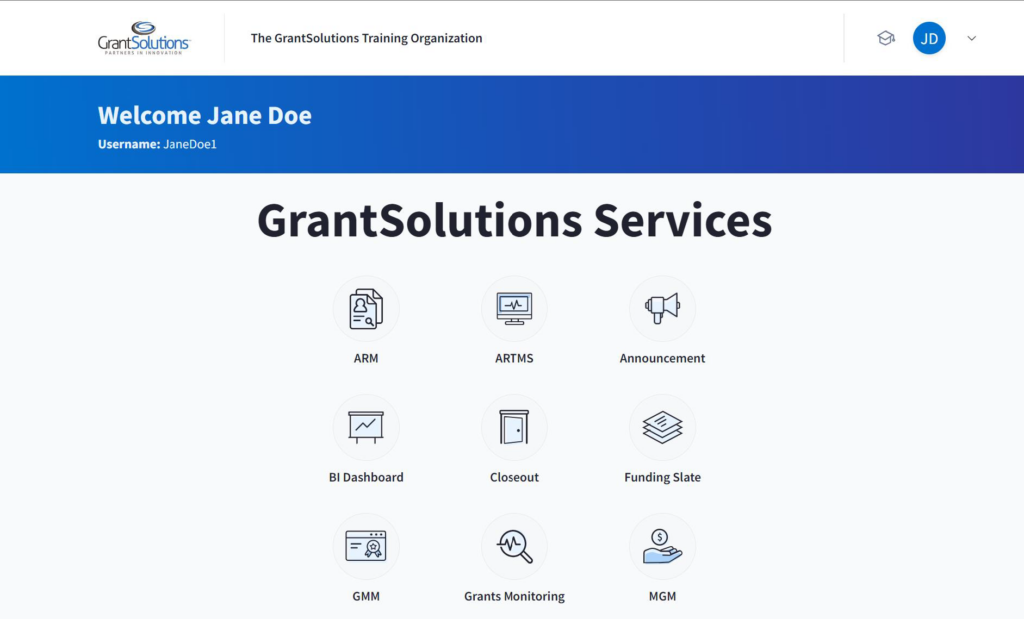
The GrantSolutions “Homepage” allows users to view the GrantSolutions Services available to them. From the “Homepage” users can access the “My Profile” screen. The “My Profile” screen allows users to view and change profile information as well as view Roles & Assignments associated with the account.
Login
To access the “Homepage” in GrantSolutions, follow the steps below:
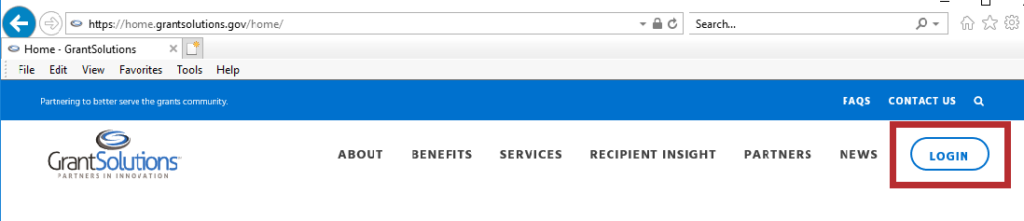
- From a browser such as Google Chrome, navigate to www.grantsolutions.gov and click the Login button.
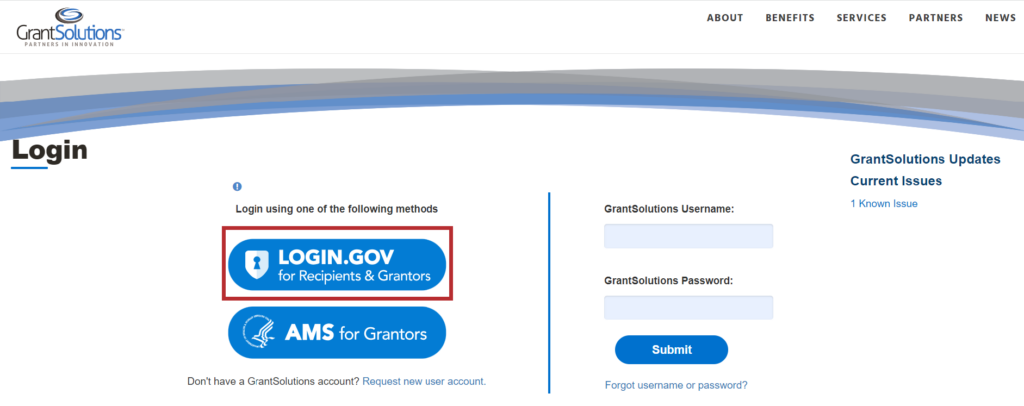
- The “GrantSolutions Login” screen appears. Click the Login.gov for Recipients & Grantors button and login using your Login.gov account.
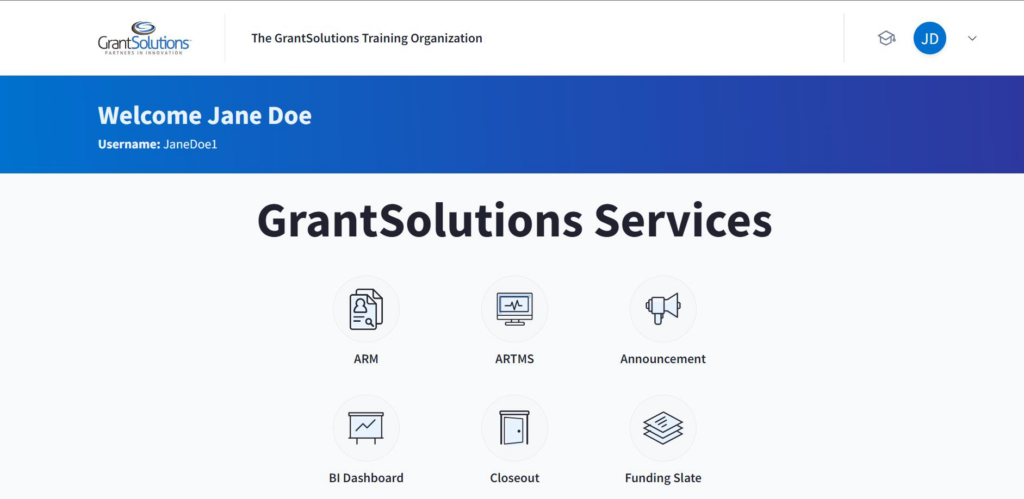
The “Homepage” appears.
My Profile Screen
To access the “My Profile” screen, edit profile information, as well as access system roles and assignments, follow the steps below:
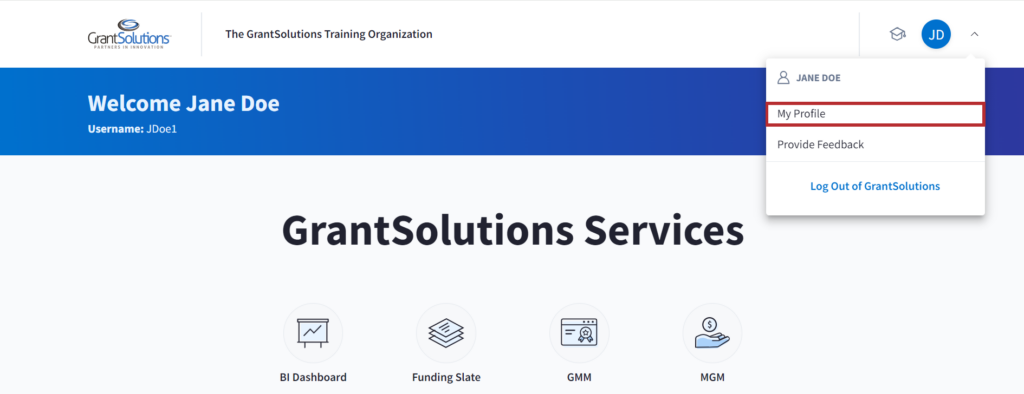
- Click the Initials icon drop-down from the Global Menu and select the My Profile option.
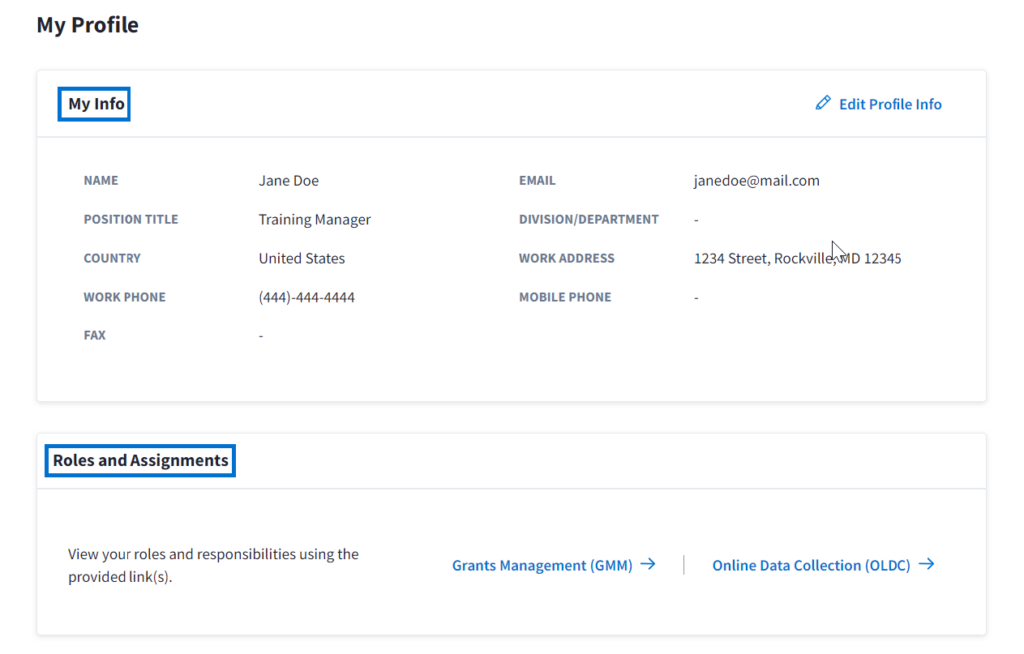
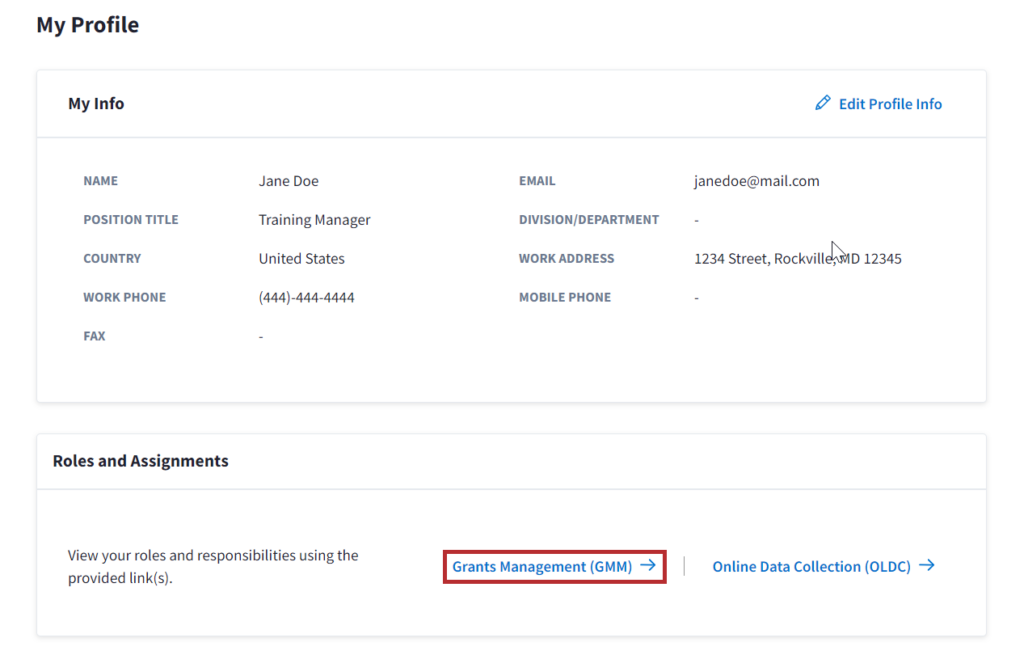
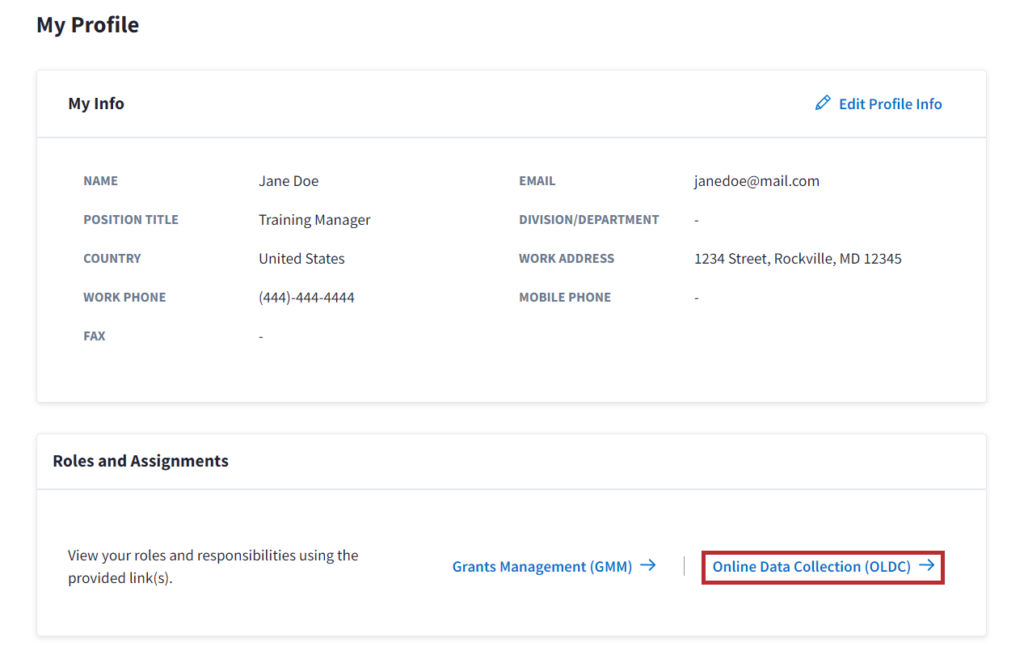
The “My Profile” screen appears with the My Info and Roles and Assignment sections.
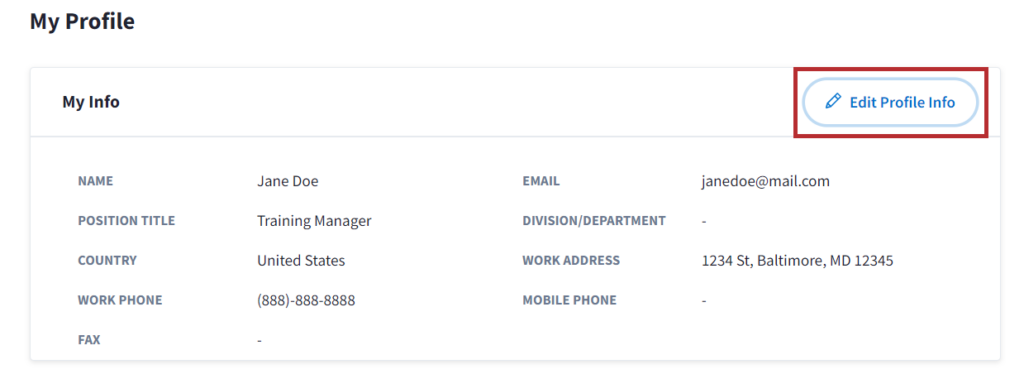
- Click the Edit Profile Info button.
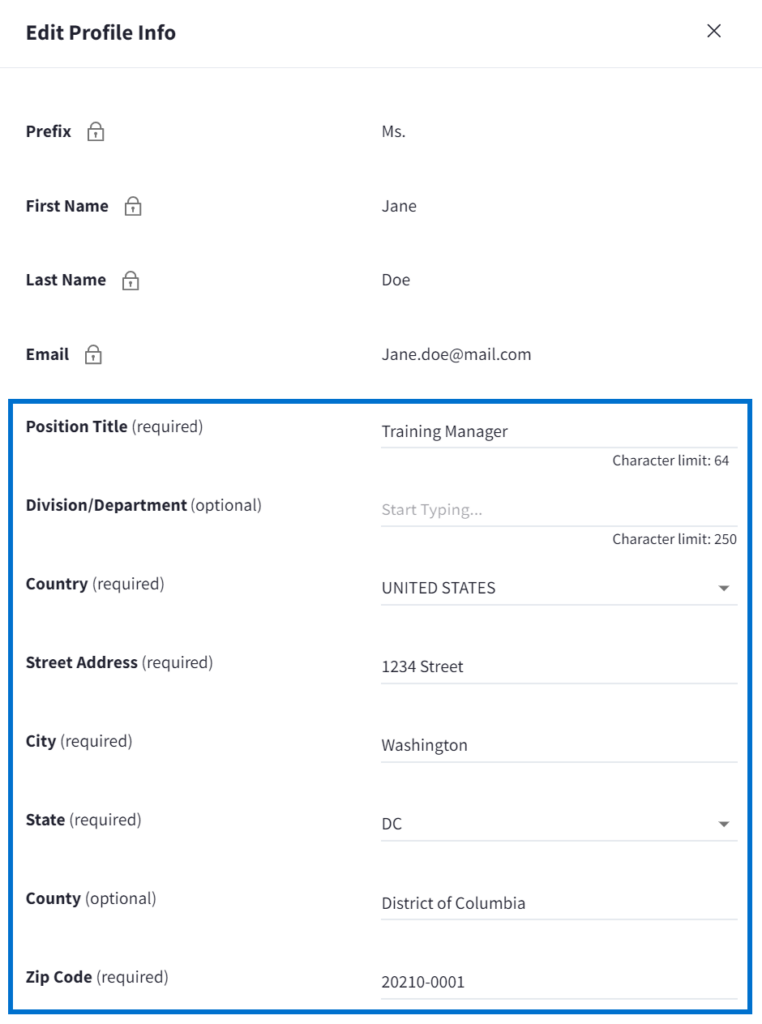
The “Edit Profile Info” window appears. The fields can be edited as needed. Some fields are required, and others are optional.
Note: The user’s Prefix, First Name, Last Name, and Email cannot be changed from this window therefore, the fields are locked. To change the Prefix, First Name, Last Name, or Email associated with an account, a user must submit a User Request Form. Help text is available when a user hovers over the lock icon.
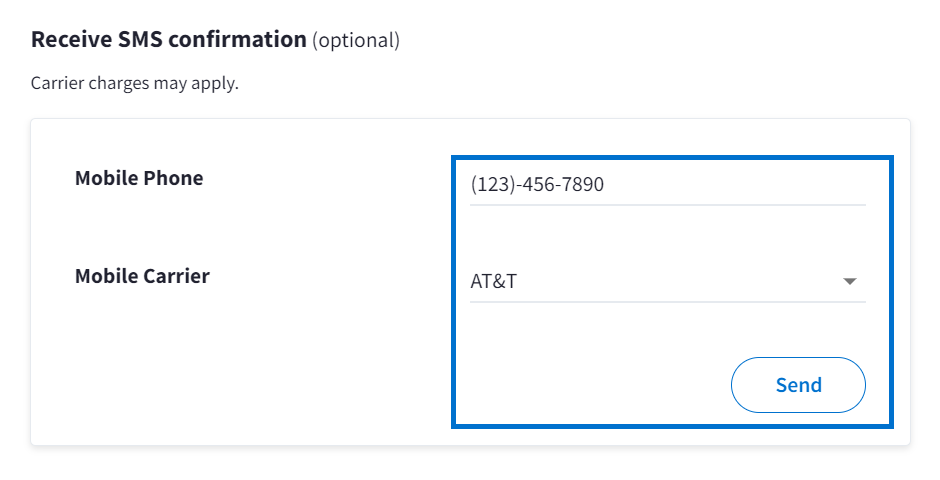
To receive SMS confirmation, enter a mobile number, select a mobile carrier, and click the Send button. Messages can be sent internationally, as well.
Note: A message will appear once the text has been sent successfully.
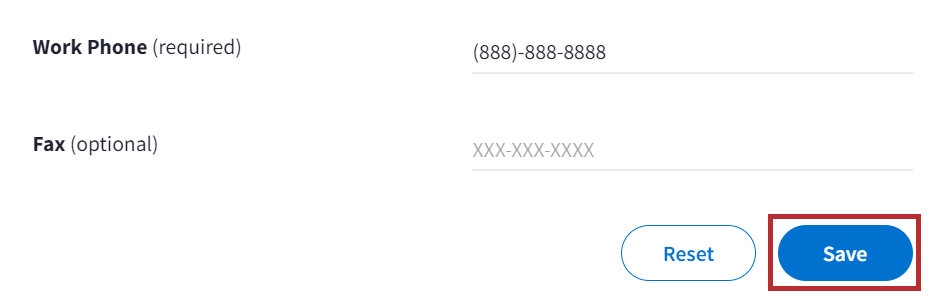
- Upon completing all adjustments, click the Save button.
Roles and Assignments
Users can view their roles and responsibilities if they are subscribed to GrantSolutions Grants Management (GMM) and/or Online Data Collection (OLDC). If a user’s partner does not subscribe to either service, the buttons will not appear.
GMM Roles and Assignments
- From the “My Profile” screen, in the Roles and Assignments section, click the Grants Management GMM button.
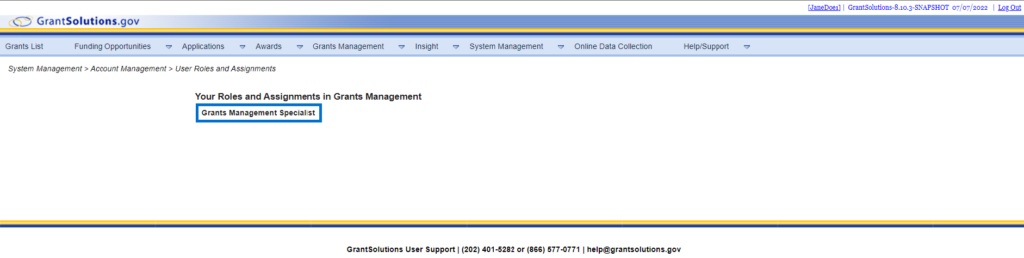
The “Your Roles and Assignments in GrantSolutions” screen appears in another window. All roles associated with a user’s account appear here.
ODLC Roles and Assignments
- From the “My Profile” screen, click the Online Data Collection (OLDC) button in the Roles and Assignments section.
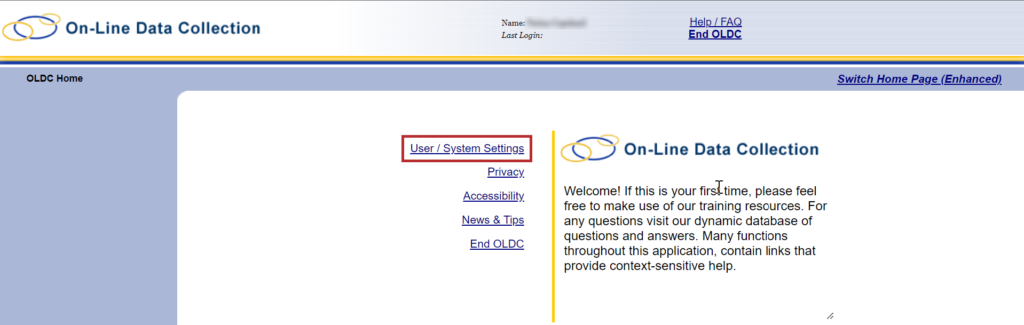
- The “OLDC Home” screen appears in another window. Click the User/System Settings hyperlink.
Once finished looking at roles and assignments, navigate back to the “My Profile” screen.
- To return to the “Home” page, click the back arrow button.
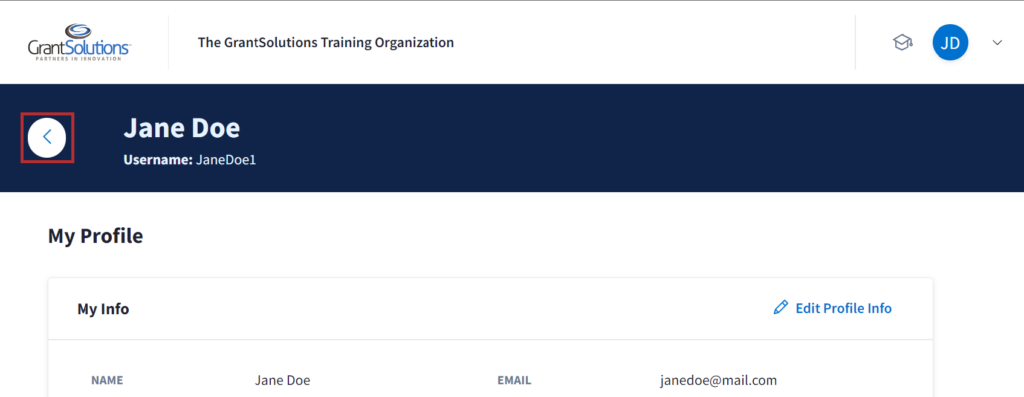
The “Homepage” appears.